SteamTools Manifest Generator: 7 Checks for AppID, Lua & Updates
A practical guide to matching AppID, depot manifests, Lua, VDF keys, and package freshness before a SteamTools import.

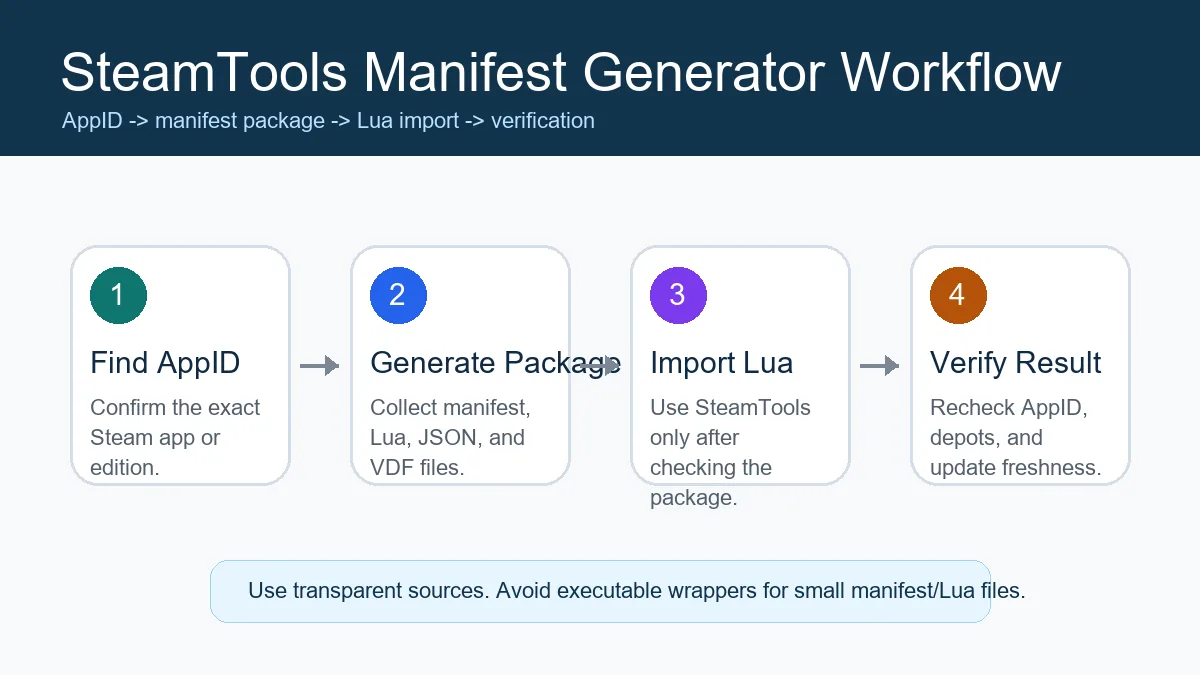
A reliable SteamTools package workflow starts with the AppID and ends with a verified Lua import, not with a random mirror download.
Table of Contents
A SteamTools manifest generator is useful only when it gives you the correct files for the correct Steam AppID. The name sounds simple, but a complete package usually combines depot manifest files, a Lua script, JSON metadata, and VDF key data. If any one of those parts is stale or mismatched, SteamTools may import the game incorrectly or fail silently.
Search results for this topic often show fast generator pages, mirror sites, Discord links, and tool pages with little explanation. That makes it easy to click the first download button and skip the basic checks. This guide gives you a safer workflow before you import anything into SteamTools.
The goal is not to replace the generator on this site. The goal is to help you use a SteamTools manifest generator with a clear checklist: confirm the AppID, inspect the package, understand what the Lua script does, and know when to refresh files after a game update.
After a game update, compare the package source date and AppID again before importing Lua. This guide explains verification and file matching; it does not provide ownership bypass, crack, or offline-bypass steps.
Apply the same transparency test to the generator page itself: it should identify the AppID, package types, and source timing instead of hiding everything behind an opaque download.
What Does a SteamTools Manifest Generator Do?
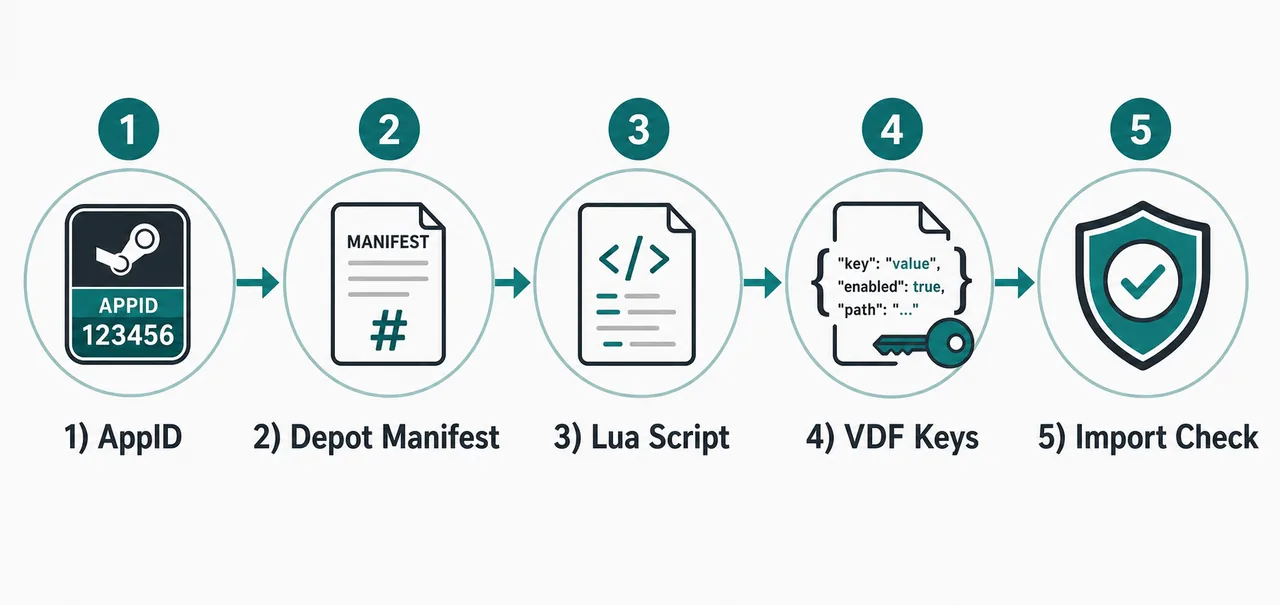
A SteamTools manifest generator takes a Steam AppID and prepares the files needed for a SteamTools-style handoff. A good generator does more than return one manifest. It should identify the relevant depots, collect the current manifest files, include the Lua script that maps those files for SteamTools, and provide supporting metadata so you can verify what was generated.
This is different from browsing a raw repository manually. Manual browsing can work, but it forces you to choose folders, depot files, and Lua scripts by hand. The generator should reduce that friction while still leaving the output transparent enough to inspect.
Also check that the generator leaves enough information to inspect the result. If the AppID, file types, depot relationship, or package timing is hidden behind one opaque download, you cannot tell whether the output matches the game.
AppID lookup
The AppID identifies the exact Steam app, edition, demo, soundtrack, or DLC entry you are checking.
Depot mapping
Many games use several depots for base files, languages, DLC, or platform-specific data.
Lua script
The Lua file tells SteamTools how to associate the app, depots, and related package data.
Key files
VDF or key data may be required for a complete package; missing keys are a common cause of failed imports.
The 7-Point Package Checklist
Before importing a downloaded package, check the files like you would check a software release. Manifest and Lua files are usually small and inspectable, so a trustworthy package should not hide its contents behind an installer or executable wrapper.
The table below is a quick way to decide whether the package is complete enough to test.
For Steam tools manifest generator searches, this checklist is also the line between a useful ZIP and a risky mirror. A transparent package should let you inspect every small text file before anything touches SteamTools.
| Check | What to look for | Why it matters |
|---|---|---|
| Correct AppID | The folder or metadata matches the Steam store AppID | Prevents importing a demo, soundtrack, DLC, or wrong edition |
| Manifest files | One or more .manifest files are present | SteamTools needs depot version data |
| Lua script | A .lua file names the same AppID | Connects the package to the SteamTools import flow |
| JSON metadata | Game title, depots, and source data are readable | Helps you spot mismatched packages quickly |
| VDF/key data | Supporting .vdf or key files are included when expected | Missing key data can make a package unusable |
| Recent update | File dates or source history are newer than the last game patch | Stale manifests can break after updates |
| No executable wrapper | No forced .exe, browser extension, or password archive | Small manifest packages should be inspectable |
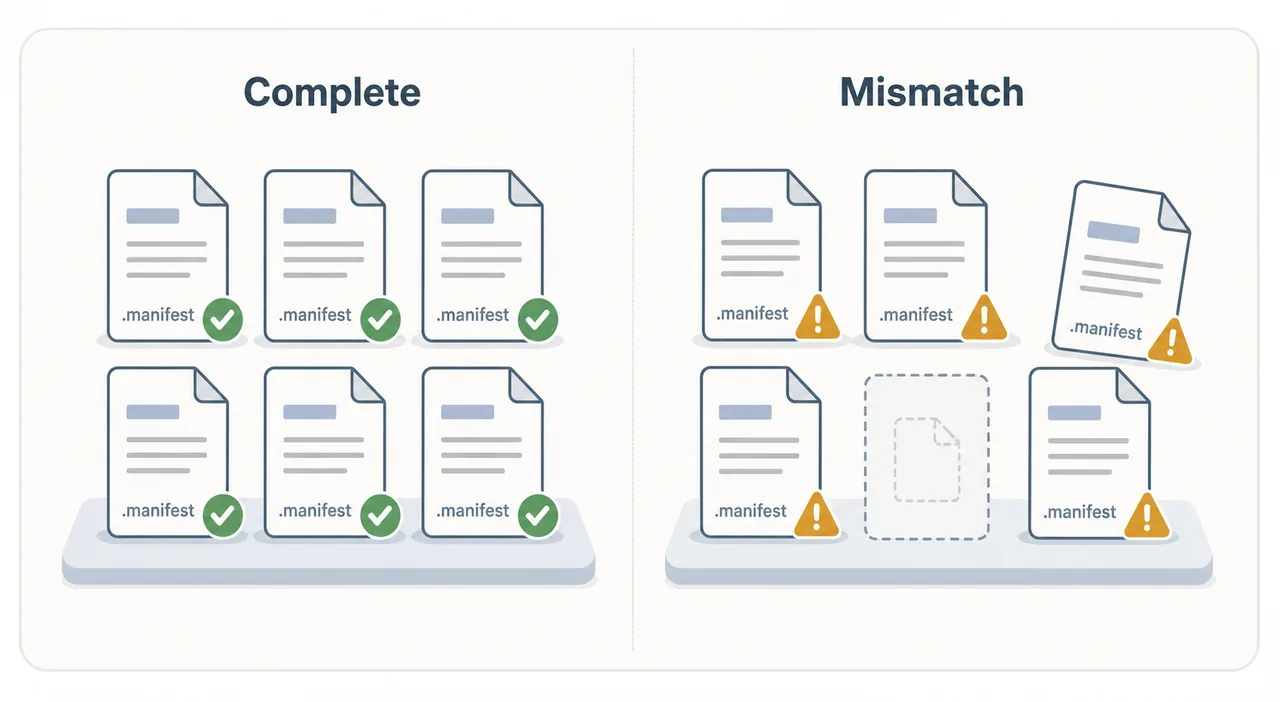
Safe Workflow: From AppID to SteamTools Import
Start with the AppID, not the game name. Game names are ambiguous because Steam can have standard editions, deluxe editions, soundtrack apps, demos, test branches, and DLC-only entries. The AppID is the stable reference.
After you generate the package, inspect the file names before importing. If the package has a Lua file but no matching manifest files, or if the AppID appears different across files, stop and recheck the source.
If your query is closer to manifest Steam tools or Steam tools Lua manifest, do not jump straight to the download. First decide whether you need a full Lua package, an availability check, or only an AppID lookup.
For the common question "how to use SteamTools manifest", treat the download as a matched package rather than a single file: verify the AppID, confirm that the depot manifests and Lua script belong together, inspect the archive, and only then import the Lua entry in SteamTools.
A manifest package should support a legitimate, inspectable workflow. It is not a way to bypass Steam ownership or offline restrictions, so do not treat an older package as a promise that a game can be used outside its normal access rules.
After a patch, compare the source date and AppID again before importing Lua. A package can look complete and still be stale or tied to another edition.
-
Confirm the AppID
Use the Steam store URL, SteamDB, or the AppID Finder on this site. Do not guess from the title alone.
-
Check availability
Use the Steam Manifest Finder or the main generator to see whether a supported package exists for that AppID.
-
Inspect the ZIP
Look for .manifest, .lua, .json, and .vdf files. Avoid downloads that require an installer just to provide these small files.
-
Import carefully
Only import the Lua file after confirming that the AppID and package files describe the same game.
-
Refresh after updates
If a game was patched recently and SteamTools stops recognizing it, generate a fresh package before troubleshooting anything else.
Practical rule
A generator should speed up a careful workflow, not replace it. The safer process is AppID first, package check second, Lua import third.
Common Errors and What They Usually Mean
Most failures fall into a few repeatable patterns. A 'not found' message often means the AppID is wrong or the community source does not have a package yet. A successful download that fails after import often points to stale manifests, missing keys, or a Lua file that does not match the rest of the package.
When in doubt, recheck the AppID and regenerate the package before changing SteamTools settings. That saves time because configuration changes will not fix a mismatched package.
A mismatch can look like a tool problem even when the generator worked. The safest first response is to compare the AppID across the Lua file, JSON metadata, manifest file names, and any VDF/key data.
| Symptom | Likely cause | First fix |
|---|---|---|
| Manifest not found | Wrong AppID or unsupported game | Verify the AppID on the store page or SteamDB |
| Lua imports but nothing changes | Lua file does not match package files | Download a fresh complete package |
| Game disappeared after update | Old manifest no longer matches the current build | Regenerate files after the patch |
| Archive contains an executable | Mirror added a custom wrapper | Use a transparent browser-based source instead |
| DLC or language missing | Package lacks one or more depots | Check whether the edition uses separate DLC or language depots |
Which Page Should You Use on This Site?
Use the main Manifest & Lua Generator when you already know the AppID and want a complete package. Use the Steam Manifest Finder when your first question is whether a package exists. Use the AppID Finder when you know the game name but not the number.
This guide is the background layer. It helps you understand what those tools are doing, why AppID accuracy matters, and how to avoid unsafe or stale downloads.
| Need | Best page | Reason |
|---|---|---|
| I know the AppID and want files | Manifest & Lua Generator | Fastest path to a complete package |
| I want to check availability first | Steam Manifest Finder | Shows whether a supported package is available |
| I only know the game name | AppID Finder | Reduces wrong-edition and wrong-DLC mistakes |
| I want source safety context | Steam Manifest Hub Guide | Explains repository and mirror risks |
Match SteamTools Manifest Generator Searches to the Right Tool
GSC data shows that users mix several phrases for the same workflow: SteamTools manifest generator, Lua manifest generator Steam Tools, manifest generator Steam Tools, and SteamTools manifest download. They are close, but they do not always mean the same action.
Use the phrase as a clue for the next step. If the query includes Lua, the user usually needs a combined package. If it says download, the user is closer to a package handoff. If it says finder, the user needs availability confirmation before importing anything. Keeping those intents separate reduces wrong AppID imports and stale packages.
| Search phrase | Best next step | Why |
|---|---|---|
| SteamTools manifest generator | Read this checklist, then use the main generator | The user needs context plus a package workflow. |
| Lua manifest generator Steam Tools | Use Manifest & Lua Generator | Lua and manifest files must come from the same AppID package. |
| SteamTools manifest download | Use Steam Manifest Downloader | The intent is package download rather than explanation. |
| Steam manifest finder | Use Steam Manifest Finder | The intent is availability checking before download. |
Intent boundary
Do not mix a Lua package from one source with manifest files from another. Pick the page that matches the current task, then keep the AppID consistent across every file.
FAQ
About the author
Sophie Laurent
Tech Writer & PC Gaming Enthusiast
Sophie Laurent writes practical guides about Steam file management, AppIDs, manifests, and SteamTools workflows. Her work focuses on turning messy repository terms into clear, repeatable checks for everyday PC gamers.
References and further reading
- Steamworks Documentation - Applications and depots - Official background on how Steam applications and depots are structured.
- SteamDB technical blog - Steam download system - Technical explanation of depots, manifests, and Steam content delivery.
- PCGamingWiki - Steam - Community technical reference for Steam files and troubleshooting.
Last updated: August 13, 2026