How to Download a Specific Steam Manifest Without Mixing Up IDs
A practical guide to AppID, DepotID, ManifestID, Steam console commands, DepotDownloader, and the safety checks that protect your install folder.

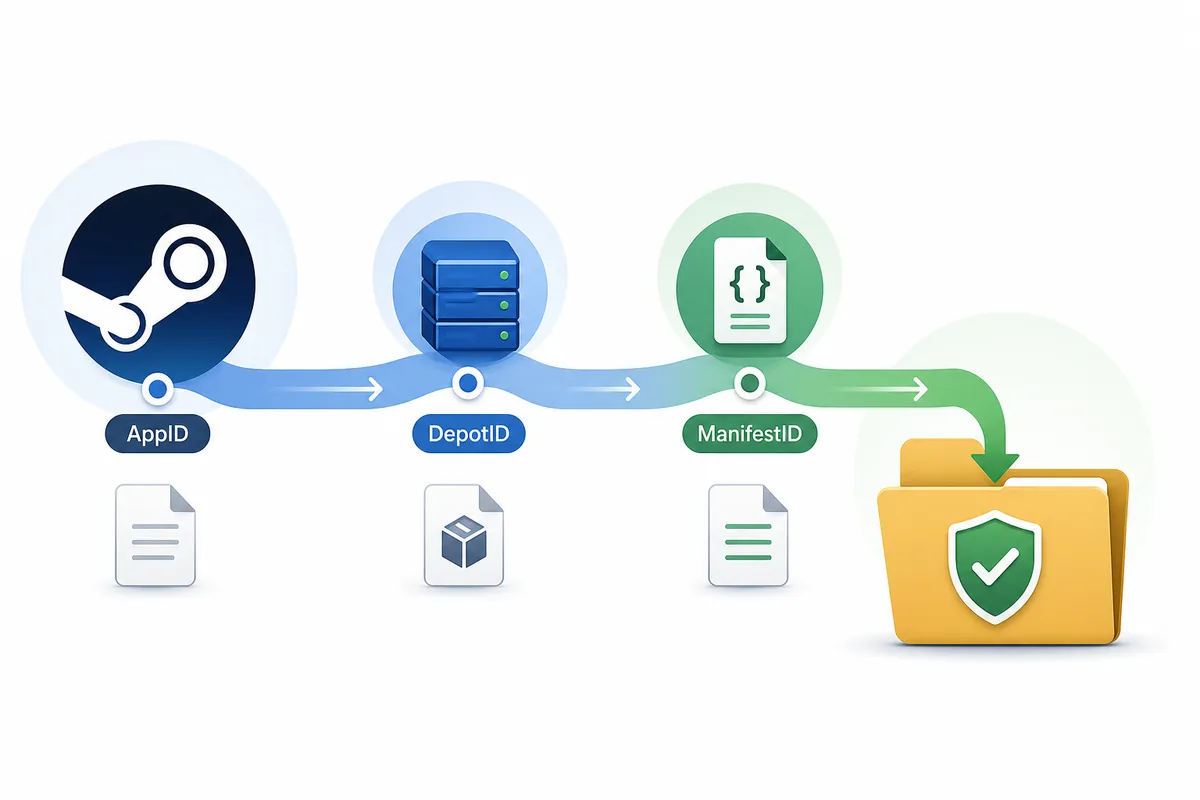
A specific manifest download should start with verified IDs, then move to a controlled download folder.
Table of Contents
To download a specific Steam manifest, you need three pieces of context: the AppID for the game or app, the DepotID for the content group, and the ManifestID for the exact depot version. A manifest ID by itself is not enough, and mixing IDs from different sources is the fastest way to get a broken or misleading download.
This guide focuses on the verification workflow before any command is run. It explains when the built-in Steam console approach is enough, when DepotDownloader is a better fit, and which checks matter before you move files into a live Steam install.
If your goal is a SteamTools-ready package with Lua, manifest, JSON, and key files, use the site generator or downloader after you confirm the IDs. This article is for the more specific question: how do you target one exact manifest version without confusing app, depot, and build history?
Quick Answer: What You Need Before Downloading
The short version is simple: confirm the AppID, choose the right DepotID, copy the ManifestID that belongs to that depot, and download into a separate folder. Do not overwrite your current Steam game folder until you understand what changed.
A specific manifest download is useful when you are comparing builds, checking a file version, recovering a modding baseline, or studying depot history. It is not a universal rollback button. Some depots require valid ownership, branch access, encryption keys, or request codes that are not available to every account.
| Item | What it identifies | Where mistakes happen |
|---|---|---|
| AppID | The Steam app, game, demo, DLC, tool, or soundtrack | Users copy a DLC or demo AppID instead of the base game |
| DepotID | A content group such as Windows files, language files, DLC, or shared assets | Users download one depot and expect a complete game |
| ManifestID | One version snapshot of one depot | Users copy an old ID without matching the correct depot |
| Download folder | A separate target location outside the active game install | Users overwrite current files before verifying the result |
Why the Three IDs Must Match
Steam content is organized in layers. The AppID points to the app. The DepotID points to a file group inside or related to that app. The ManifestID points to one version of that depot. When those three numbers come from different places, the command can still look valid while the output is wrong.
This is why SteamDB-style research should start from the app page, then move into the depot list, then into manifest history. Starting from a random manifest number removes the context that tells you whether it belongs to Windows files, language content, DLC, or an older branch.
App first
Start from the Steam store URL or a trusted AppID lookup so you know which app entry you are targeting.
Depot second
Pick the depot that matches platform, language, DLC, or shared content instead of assuming one depot is the whole game.
Manifest third
Use a manifest version that belongs to the selected depot and fits the build date you are investigating.
Separate folder
Download to a clean folder so verification is possible before any file replacement.
Steam Console vs DepotDownloader: Which Method Fits?
There are two common routes. The Steam client console can run a download_depot style command for many user workflows. DepotDownloader is a separate open-source command-line tool commonly used when users need more explicit control over login, branch, manifest, destination, and automation options.
Choose the method based on control and risk. If you only need a quick manual download and understand the IDs, the Steam console may be enough. If you need repeatable commands, a specific output folder, branch details, or clearer logs, DepotDownloader is usually easier to audit.
Need command-line control?
If your next step is a DepotDownloader command rather than a SteamTools package, review the GitHub, account, branch, and folder checks first: DepotDownloader GitHub guide.
Where did the files go?
If the command completed but you cannot find the output, check the Steam console and DepotDownloader folder map: find every Steam depot download folder.
| Method | Best for | Watch out for |
|---|---|---|
| Steam console download_depot | One-off manual downloads from the installed Steam client | Paths and output behavior can be less obvious; still requires correct IDs |
| DepotDownloader | Repeatable command-line downloads with explicit options | Requires careful account handling and may need credentials or branch access |
| Manifest & Lua Generator | SteamTools package workflows after AppID verification | It solves package generation, not every old-manifest rollback case |
| Steam Manifest Finder | Checking whether this site has a matching package | Availability checks should happen before import or overwrite steps |
| DLC-aware manifest workflow | Checking whether DLC, language, or shared depots are included before download | Use the DLC manifest download guide before assuming one depot is complete |
Step-by-Step Workflow for a Specific Manifest
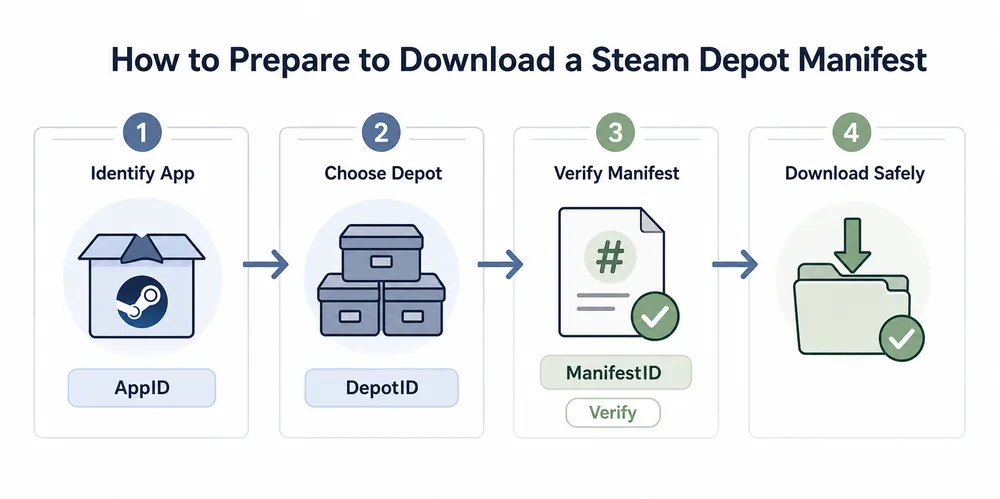
Use this workflow before you run a command. The goal is to make the intended target obvious enough that another person could review the same IDs and understand why they belong together.
The most important habit is to keep notes: app name, AppID, depot name, DepotID, ManifestID, build date, branch if any, and the download folder. Those notes help you avoid mixing a new Lua file with an old manifest or a Windows depot with a language depot.
-
Confirm the AppID from the store URL or AppID Finder.
Do not rely on a game title alone. Demos, DLC, soundtracks, and regional packages can have different AppIDs.
-
Open the depot list and pick the correct DepotID.
Match the depot to platform, language, DLC, or shared content. If you need a complete install, one depot may not be enough.
-
Copy the ManifestID from that depot history.
Check the build date and branch context before assuming an older manifest is the one you need.
-
Download into a separate folder.
Use a clean destination and keep it away from your active Steam install until verification is complete.
-
Compare before replacing anything.
Check file timestamps, expected folders, and package notes. Only then decide whether the output is useful for your real workflow.
Safety Checks and Real Limitations
Downloading a manifest is not the same as bypassing Steam ownership, branch rules, or encryption. Many depots still require the right account access, and some old manifests cannot be downloaded normally because request codes, branch passwords, encryption keys, or access rules changed.
Avoid executable wrappers, password archives, and mirrors that hide small manifest files behind opaque software. Manifest-related files are usually inspectable. If a source makes inspection difficult, treat that as a source-quality problem.
If your real question is whether the download includes DLC, language packs, or shared content, use the DLC manifest download guide to verify every required depot before running commands.
| Risk | Why it matters | Safer habit |
|---|---|---|
| Wrong account access | Some depots require ownership or branch permission | Use an account that legitimately has access |
| Stale manifest | Old depot versions can be unavailable or incomplete | Check build date and request-code context |
| Mixed package files | Lua, manifest, and metadata may point to different versions | Keep all IDs from one verified source path |
| Overwriting live files | A partial depot can break the current install | Use a separate folder and compare first |
| Opaque downloads | Installers can hide what should be small text/data files | Prefer transparent tools and inspectable archives |
Common Troubleshooting Scenarios
Most failures trace back to ID context or permissions. If a command fails, do not immediately switch tools. First verify that the AppID, DepotID, ManifestID, branch, and account access all describe the same target.
If the output downloads but is incomplete, check whether the game uses several depots. A base Windows depot may not include language packs, DLC, shared redistributables, or optional content. For SteamTools package work, return to the site downloader or generator after the ID check rather than hand-merging unrelated files.
| Symptom | Likely cause | First check |
|---|---|---|
| Command rejects the manifest | Manifest does not match the depot or access is missing | Recheck DepotID and account permissions |
| Only part of the game appears | You downloaded one depot from a multi-depot app | Review depot list for language/DLC/shared depots |
| Old version will not download | Request code, branch, or access changed | Check SteamDB history and branch context |
| SteamTools import fails later | Manifest files and Lua package do not match | Generate a fresh package for the verified AppID |
| Files overwrite current install | Destination path was not isolated | Repeat into a clean folder before any replacement |
FAQ
References and further reading
- Steamworks Documentation - Applications and depots - Official background on Steam applications and depot structure.
- Steamworks Documentation - Uploading to Steam - Official background on builds, depots, and SteamPipe concepts.
- SteamDB technical blog - Manifest request codes - Technical context for why some older manifests may require additional request information.
- SteamRE DepotDownloader on GitHub - Open-source tool documentation for command-line depot downloads.
Last updated: June 23, 2026