How to Download Steam Manifest Files That Include DLC
A practical guide to DLC AppIDs, depot manifests, language depots, shared depots, access limits, and the checks that prevent incomplete SteamTools packages.

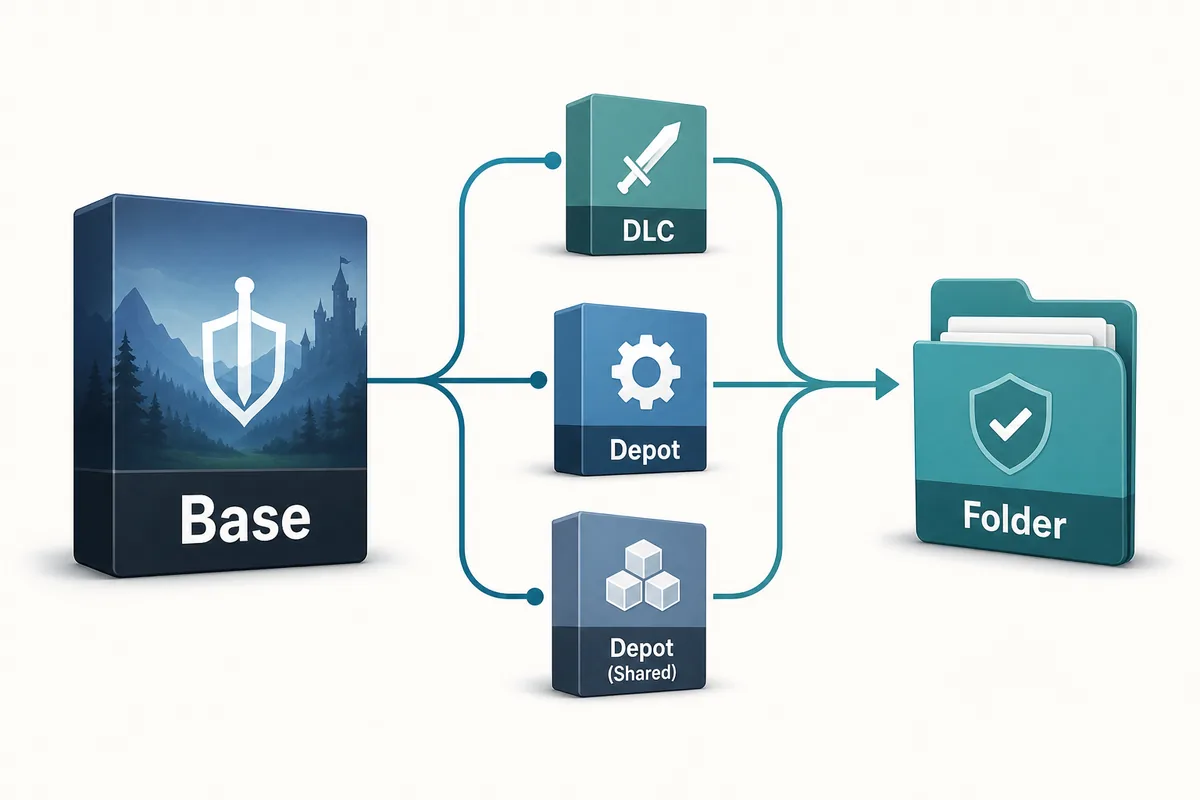
DLC coverage is a depot question first: confirm the app, DLC entry, depot list, manifest version, and destination folder before using the files.
Table of Contents
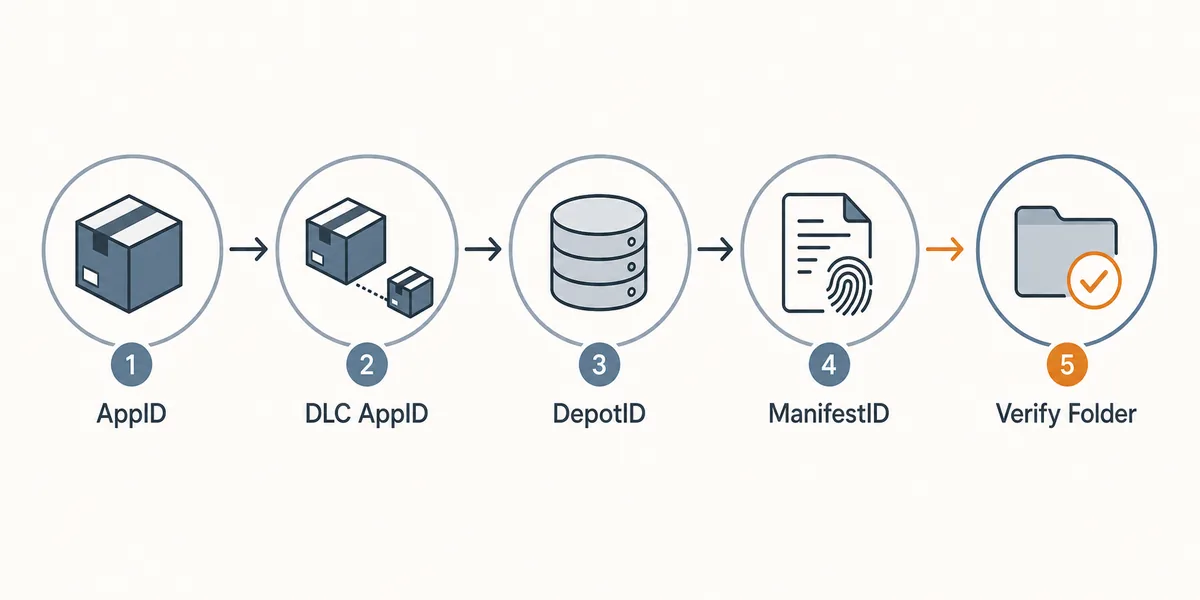
If you are trying to download Steam manifest files that include DLC, the important question is not whether the word DLC appears in a tool. The question is whether the AppID, DLC AppID, depot list, and ManifestID all point to the content you expect. A manifest downloader can return a real depot and still miss DLC files if you selected only the base game depot.
Steam content is split into apps, packages, depots, builds, and manifests. Some DLC is delivered as extra depots under the base game. Some DLC has its own Steam app entry. Some language packs and shared redistributables are separate depots. Some content is visible only when the account owns it or has branch access. That is why a safe workflow checks coverage before any SteamTools import or folder replacement.
This guide focuses on the DLC-specific decision: when a Steam manifest download should include DLC, when you need a separate DLC depot, and how to verify that the downloaded folder is complete enough for your actual goal.
Quick Answer: DLC Is Included Only If Its Depot Is Included
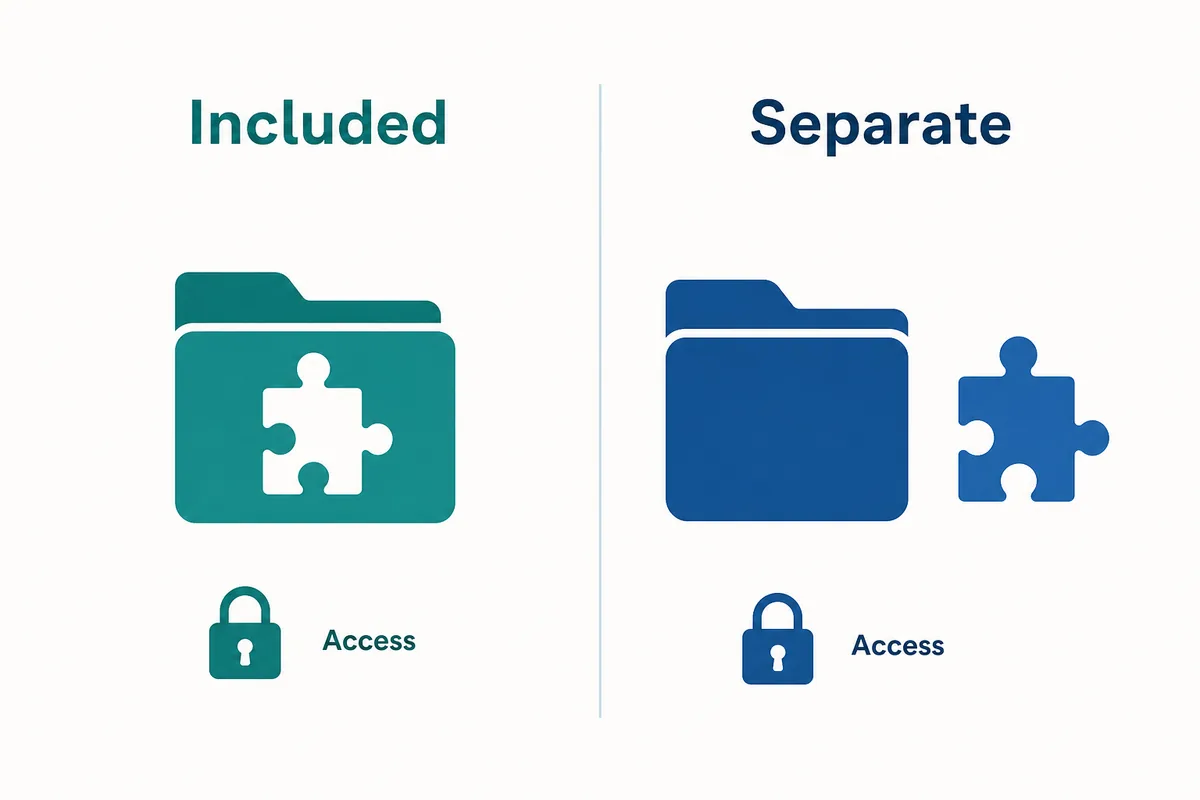
A Steam manifest file describes one version of one depot. It does not automatically mean the whole game, every DLC, every language, or every optional package is included. To include DLC, you need to know where the DLC files live and choose every relevant depot manifest.
For many games, the base app depot contains the executable and core assets, while DLC content is placed in additional depots or unlocked through ownership flags. In other cases, small DLC is already inside the base files and only needs an entitlement check. The visible result can look similar to the player, but the manifest workflow is different.
The safest rule is simple: do not ask whether a manifest includes DLC. Ask which AppID and which depots are required for the DLC experience you want to verify.
Base AppID
Identifies the main Steam game. It may not identify every DLC entry or content depot.
DLC AppID
Some DLC has a separate app entry, package relationship, store page, or ownership rule.
DepotID
Identifies the file group you actually download. DLC, language, and platform files can be separate depots.
ManifestID
Identifies one version snapshot of one depot, not a full edition by itself.
| User goal | Usually required | Common mistake |
|---|---|---|
| Base game only | Base app depots for the right platform and language | Using a DLC AppID instead of the main app |
| DLC files included | Any DLC depot or depot that contains DLC assets | Assuming the base depot includes every DLC |
| Complete language install | Base depot plus matching language depot when separated | Downloading English files and expecting all languages |
| Old build comparison | ManifestIDs for each required depot at the same build period | Mixing one old DLC depot with current base files |
| SteamTools package | Lua, manifests, JSON, and key/VDF data that describe the same app and depots | Importing Lua from one source and manifests from another |
Best first check
If you cannot list the DLC-related depots, the download plan is not ready yet.
DLC AppID vs DepotID: Why the Names Get Confusing
Steam store pages make DLC look like a product attached to a game, but Steam delivery is built around depots and manifests. A DLC AppID can tell you that a DLC exists, while a DepotID tells you where files are delivered. Sometimes those line up neatly; sometimes the DLC unlocks files already present in the base depot; sometimes the DLC has its own depot.
This difference explains why users often download a correct manifest and still feel something is missing. The manifest was real, but it belonged to a depot that did not contain the DLC content they expected. A downloader cannot infer a full edition from a single number unless the tool has a reliable package map.
Language content adds another layer. A game may use one depot for Windows files, another depot for Japanese or Korean audio, another for optional HD assets, and another for DLC. If you need a complete playable folder, the list of depots matters more than the title of the app.
| Term | What it answers | DLC-specific question |
|---|---|---|
| AppID | Which Steam app or DLC entry is this? | Is this the base game or a DLC app entry? |
| Package | What ownership or purchase bundle grants access? | Does the account own the DLC package? |
| DepotID | Which group of files can be downloaded? | Does this depot contain DLC, language, or shared content? |
| ManifestID | Which version of that depot is selected? | Does the manifest date match the build you need? |
| Branch | Which release channel is targeted? | Is the DLC depot locked behind a beta branch or password? |
Mental model
DLC is a product and entitlement concept; depot manifests are the file-delivery layer. You need both views when accuracy matters.
Step-by-Step Workflow for DLC-Aware Manifest Downloads
Use this workflow before running Steam console commands, DepotDownloader commands, or SteamTools package imports. The goal is to make the required depots explicit so you do not mistake a partial download for a complete edition.
Keep a small note with the app name, base AppID, DLC AppID if available, depot names, DepotIDs, ManifestIDs, branch, build date, and download destination. Those notes become important when you compare old builds or troubleshoot missing files after a patch.
-
Confirm the base game AppID.
Start from the Steam store URL, your library, or a trusted AppID lookup. Do not rely on a game title alone because demos, tools, soundtracks, and DLC can have separate entries.
-
Identify whether the DLC has a separate app or package entry.
Check the store relationship and ownership context. A DLC AppID can help you understand entitlement, but it may not be the depot you need to download.
-
Open the depot list and mark every relevant content depot.
Look for platform, language, DLC, soundtrack, HD texture, shared content, and redistributable depots. A complete target may require more than one depot.
-
Choose matching ManifestIDs for the same build window.
When comparing older versions, avoid mixing a current base depot with an old DLC depot unless that mismatch is exactly what you are testing.
-
Download into a separate folder.
Never overwrite your active Steam install first. Use a clean destination where file count, folder names, and timestamps can be reviewed.
-
Verify the folder before SteamTools import or file replacement.
Check whether DLC directories, language files, and metadata are present. If they are missing, return to depot coverage before changing tools.
Workflow rule
A DLC-aware manifest workflow is finished only when the downloaded folder proves the required depots were included.
How to Check Whether DLC Files Are Actually Covered
There is no universal folder name that proves DLC is included. Some games store DLC in obvious directories. Others place DLC assets inside shared archives, use entitlement checks, or separate optional content by language and platform. That is why the verification should combine depot research with folder inspection.
Start with the depot names and descriptions. If a depot is named for a language pack, DLC pack, soundtrack, bonus content, or optional high-resolution content, it probably needs separate attention. If a DLC has no visible content depot, the game may ship the files in the base install and unlock them through ownership or configuration.
For SteamTools-style packages, also check that Lua, JSON, manifest files, and VDF/key data describe the same app and depot set. A package can contain a DLC-related manifest but still fail if the Lua mapping points to a different depot list.
| Check | Pass signal | Warning signal |
|---|---|---|
| Depot names | DLC, language, platform, or shared depots are intentionally selected | Only one generic base depot is selected for a DLC-heavy game |
| Manifest dates | Required depots come from the same build period | DLC manifest is much older or newer than the base depot |
| Folder review | Expected DLC or language directories are present when the game uses them | Output contains only base executable and core assets |
| Package metadata | Lua, JSON, and manifest files reference the same AppID and depot set | Lua mentions one AppID while manifests come from another source |
| Access context | Account ownership, branch, and password requirements are understood | Tool fails and the user only switches mirrors |
Practical sign
If a tool returns files but the depot list never included DLC-related content, the result is probably incomplete for DLC use.
Limits, Ownership, and Request Codes
Downloading manifests does not bypass Steam ownership, depot permissions, branch passwords, encryption keys, or request-code rules. Some older manifests may no longer be available in the way old guides describe, and some depots require account access. Treat access failures as information, not as a reason to run random executable mirrors.
DLC also raises legal and account-safety issues. This guide is about understanding manifest coverage for legitimate library management, backup study, troubleshooting, and package verification. It is not a method for obtaining DLC you do not own or bypassing Steam's access controls.
If a download source hides small manifest files inside installers, password archives, or browser extensions, choose a transparent workflow instead. Manifest files, Lua scripts, JSON metadata, and key/VDF files should be inspectable before import.
Ownership still matters
DLC depots may require the right account entitlement or package relationship.
Branches matter
Beta or private branches can change which manifest is reachable.
Keys and request codes matter
Some old depot manifests or encrypted depots need additional access context.
Source quality matters
Transparent small files are easier to inspect than opaque installers or mirrors.
Safety boundary
Use manifest research to verify files you are entitled to manage; do not treat it as an ownership bypass.
Which Page or Tool Should You Use Next?
Use this guide when your question is about DLC coverage: does the manifest download include DLC, which depots are required, and how should you verify the folder? Use the specific-manifest guide when you already know the exact AppID, DepotID, and ManifestID and want a safer command workflow.
Use the main generator when you already know the AppID and want a SteamTools-ready manifest and Lua package. Use the Steam Manifest Finder when the first question is whether this site has files for the AppID. Keeping these intents separate prevents the DLC guide from cannibalizing the tool page while still giving searchers the answer they need.
| Need | Best next page | Why |
|---|---|---|
| Check DLC depot coverage | This guide | Explains DLC, depot, language, and access checks |
| Target one exact manifest version | Download a Specific Steam Manifest | Focuses on AppID, DepotID, ManifestID, and commands |
| Generate a SteamTools package | Manifest & Lua Generator | Best when the AppID is already known |
| Check package availability | Steam Manifest Finder | Fast lookup before deeper manual research |
| Learn package import basics | SteamTools Manifest Generator Guide | Broader Lua, JSON, VDF, and import checklist |
FAQ
References and further reading
- Steamworks Documentation - Applications and depots - Official background on Steam applications and depots.
- Steamworks Documentation - Downloadable Content - Official context for Steam DLC app relationships.
- Steamworks Documentation - Uploading to Steam - Official explanation of builds, depots, and SteamPipe upload concepts.
- DepotDownloader GitHub documentation - Open-source tool documentation for command-line depot downloads.
Last updated: June 27, 2026