Steam Tools Lua Manifest Generator: Check the Complete Package
How AppID, depot manifests, Lua, metadata, and update timing fit into one transparent SteamTools workflow.

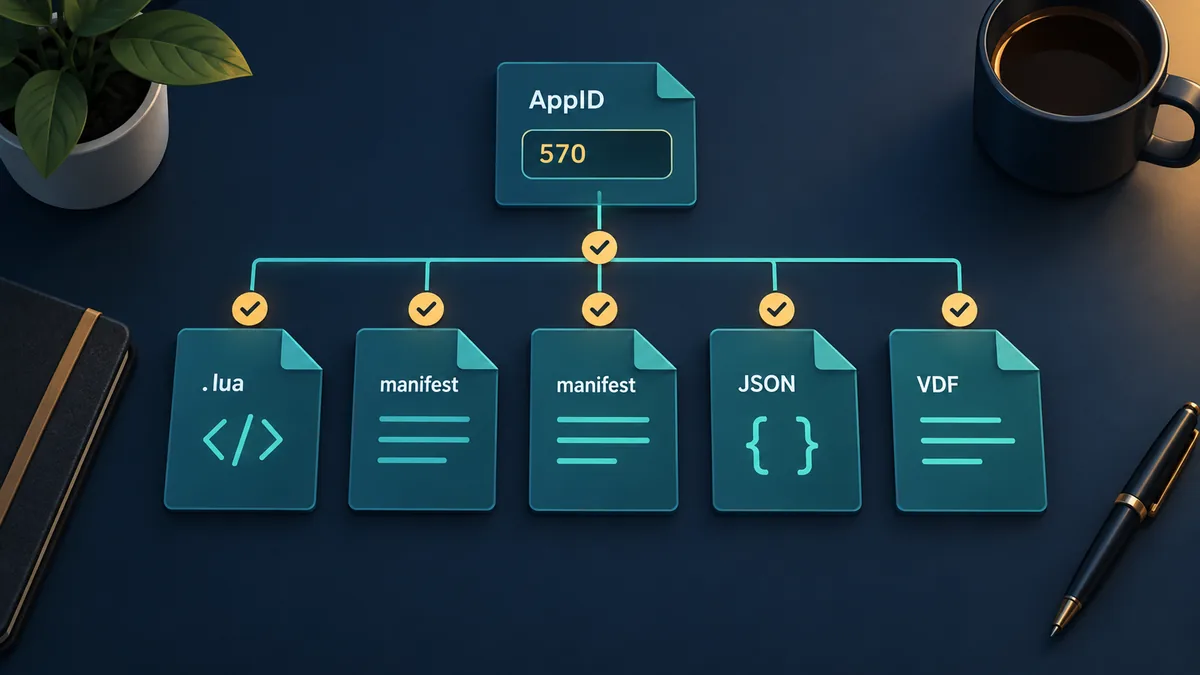
A Steam Tools Lua manifest generator is usually searched for when one small task has several file names attached to it. You may know the game but not its AppID, see a Lua file without knowing which manifest it expects, or find a ZIP that never explains whether the contents belong together.
Treat the result as a package rather than a single magic file. A Steam application can have multiple depots, languages, DLC entries or platform variants, so a useful source should make those relationships inspectable.
This guide explains the neutral file relationships, a repeatable verification sequence, and the difference between a finder, a generator, a downloader and a Lua-focused page. It does not provide ownership bypass, crack, or offline-bypass instructions. It is a package-integrity guide for people who want to understand what they are handling.
If you know the AppID and need a package, use the site's main generator after the checks below. If availability is the only question, use the Steam Manifest Finder first.
What a Steam Tools Lua Manifest Generator Package Contains
The phrase Steam Tools Lua manifest generator describes a workflow, not an official Steam feature. The output normally combines several small, readable files. The exact list depends on the source and the app, but the important question is whether every file points back to the same AppID and compatible build.
A manifest file records depot content information. A Lua file is a script or data handoff used by a SteamTools-style workflow. JSON may describe the title, depots, timestamps or source details, while VDF or key data can provide supporting configuration. None of those names alone proves that a package is complete.
The safest package is inspectable before import. Hidden file lists and unexplained executables deserve extra caution.
AppID
The stable app reference. It separates a base game from a demo, soundtrack, DLC or another edition.
Depot manifests
Versioned content references. One app may use several depots for files, languages, DLC or platforms.
Lua
The package's SteamTools-facing script or data layer. It should match the app and the package it accompanies.
Metadata and keys
JSON, VDF or key data can make the package easier to inspect and may be expected by the workflow.
First principle
Do not judge a package by the presence of a .lua file alone. The AppID and the surrounding manifest data are what make the package meaningful.
Map AppID, DepotID, ManifestID and Lua Before You Import
Start with the AppID instead of the game title. Steam can have separate entries for an edition, demo, soundtrack, test app or DLC, so the store URL or a trusted AppID lookup is better than guessing from a filename.
Then distinguish the identifiers. AppID identifies the application, DepotID identifies a content group, and ManifestID points to a particular depot state. A Lua file may reference these values, but it does not replace checking the manifests.
Use the table as a mental model. Missing context is a reason to investigate before treating a package as complete.
| Identifier or file | Question to ask | Mismatch signal |
|---|---|---|
| AppID | Which exact Steam app is this? | The number maps to a demo, DLC or different edition. |
| DepotID | Which content group does it represent? | A required language, platform or DLC depot is absent. |
| ManifestID | Which depot state is being described? | The manifest is older than the app update or differs across files. |
| Lua file | Does it identify the same AppID and package? | The script names another app or has unrelated metadata. |
| JSON/VDF/key data | Does the supporting data agree? | Title, depot list or source timing conflicts with the archive. |
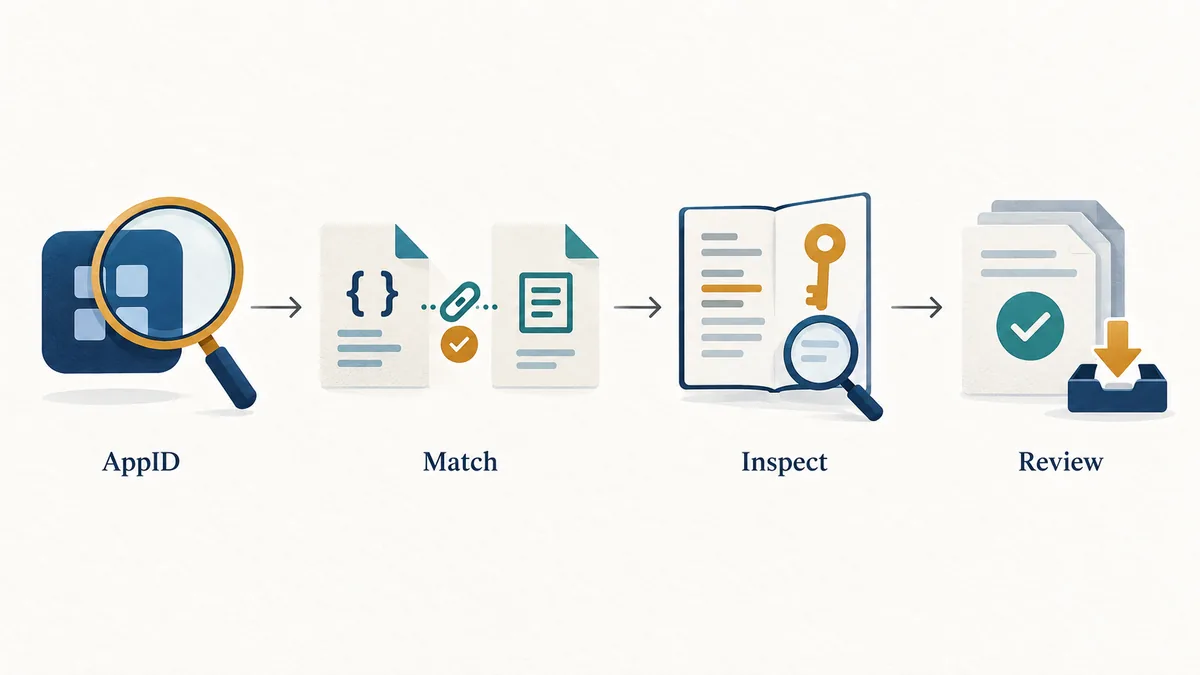
Why this matters
The strongest check is agreement: AppID, depots, manifests, Lua and metadata should tell one consistent story.
Seven Checks Before Importing a SteamTools Package
Before importing a Lua file, check the package as if it were a small software release. An update, edition change or missing depot can make old data look convincing while remaining incompatible.
If you do not know the AppID, resolve that first. If the package is missing expected file types, investigate instead of compensating with random files from another source.
-
1. Confirm the AppID
Compare the AppID with the Steam store URL or a reputable database. Do not infer it from a shortened game name.
-
2. Identify the edition
Check whether the entry is the base game, a demo, DLC, soundtrack, test branch or another app record.
-
3. List the archive
Look for the expected .manifest, .lua, .json and, when relevant, .vdf or key files. A visible list is a useful trust signal.
-
4. Compare identifiers
Check the AppID and depot references across the Lua file, metadata and manifest names. One conflicting number deserves a pause.
-
5. Check update timing
Compare the package's source date or revision notes with the game's recent update history. Avoid calling any package permanently latest without evidence.
-
6. Prefer inspectable files
Do not run an unknown executable just to unpack small text files. Keep the package in a temporary folder until its contents make sense.
-
7. Import only the matched set
Use the Lua file with the manifest and supporting data it was created for. Do not mix files from unrelated AppIDs or sources.
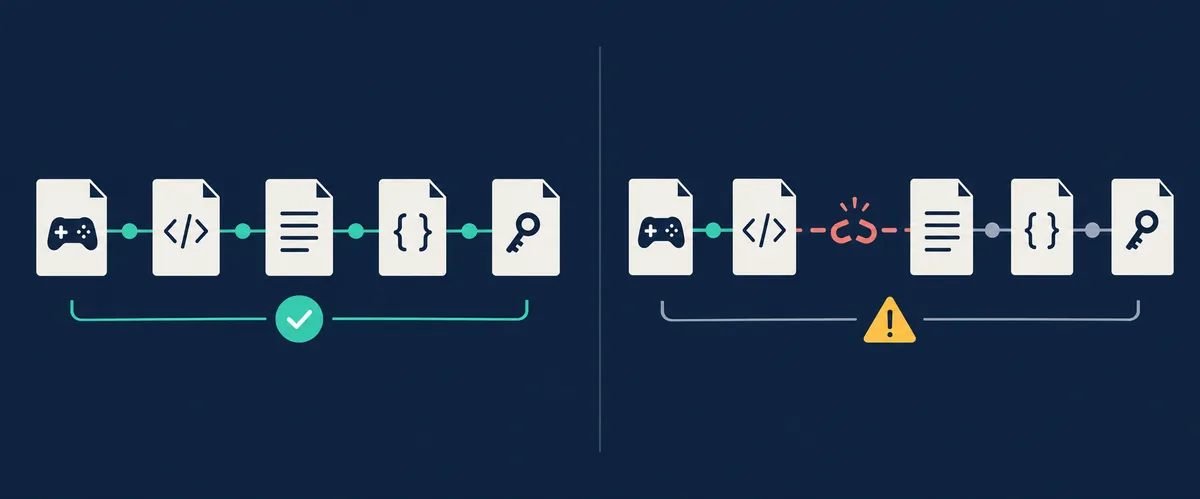
Practical rule
AppID first, package inspection second, import third. Configuration changes cannot repair a package whose identifiers do not match.
Fix Common SteamTools Lua and Manifest Mismatches
A package can download successfully and still fail at import. The common reason is that one file belongs to another app, depot, edition or build. Rechecking identifiers is usually faster than changing several settings at once.
After a patch, stale data becomes more likely. If the package stopped after an update, refresh the matched set before deeper troubleshooting.
| Symptom | Likely explanation | First response |
|---|---|---|
| Manifest not found | Wrong AppID or no matching package | Verify the app entry, then check availability again. |
| Lua imports but nothing changes | Lua and manifest set do not match | Regenerate or obtain a complete matched package. |
| It stopped after an update | The depot state is stale | Compare dates and refresh the package. |
| DLC or language is missing | An optional depot is not included | Identify the edition and depot before looking for files. |
A safe diagnostic order
Verify AppID, compare the package contents, refresh stale files, and only then investigate application settings or network errors.
Choose the Right Page for Your SteamTools Search
Several search phrases overlap: SteamTools manifest generator, manifest Lua generator Steam Tools, SteamTools Lua, and SteamTools manifest files. They point to related tasks, but the best next page depends on what you already know.
Use the main generator for a known AppID and combined package, the finder for availability, the downloader for an available manifest package, and the Lua generator for a Lua starter from an AppID.
| Your situation | Best next page | Why |
|---|---|---|
| I know the AppID and need a combined package | Manifest & Lua Generator | It is the most direct package workflow. |
| I need to know whether a package exists | Steam Manifest Finder | It answers the availability question first. |
| I want an available manifest package | Steam Manifest Downloader | It is focused on the download step. |
| I know the game name but not the number | AppID Finder | It reduces wrong-edition mistakes. |
Keep the intent boundary clear
A guide should explain the workflow; a finder should answer availability; a generator or downloader should handle the next concrete package step.
Keep the SteamTools Workflow Transparent
Steam's application and depot vocabulary helps explain the file shape, but community SteamTools utilities are third-party. Treat their source, update timing and file handling as separate questions from Steam's official documentation.
A good workflow answers four questions: Which AppID, depots and manifest state are included? Does the Lua file belong to that set? What changed since the last update? If the source cannot answer them, slow down.
Bottom line
A reliable Steam Tools Lua manifest generator workflow is transparent: resolve the AppID, inspect the package, align identifiers, and refresh after updates.
FAQ
References and further reading
- Steamworks Documentation — Applications and depots — Official background on how Steam applications and depots are organized.
- SteamDB — Steam download system — Technical context for depots, manifests and Steam content delivery.
- PCGamingWiki — Steam — Community reference for Steam files and troubleshooting context.
Continue with the matching tool
Use the page that matches your next step: identify the AppID, check availability, generate a package, or troubleshoot a mismatch.
Last updated: September 13, 2026