SteamTools Not Working? A Safe Troubleshooting Guide
Check the release, package files, Steam library, permissions, and network state in a reversible order before you replace anything.

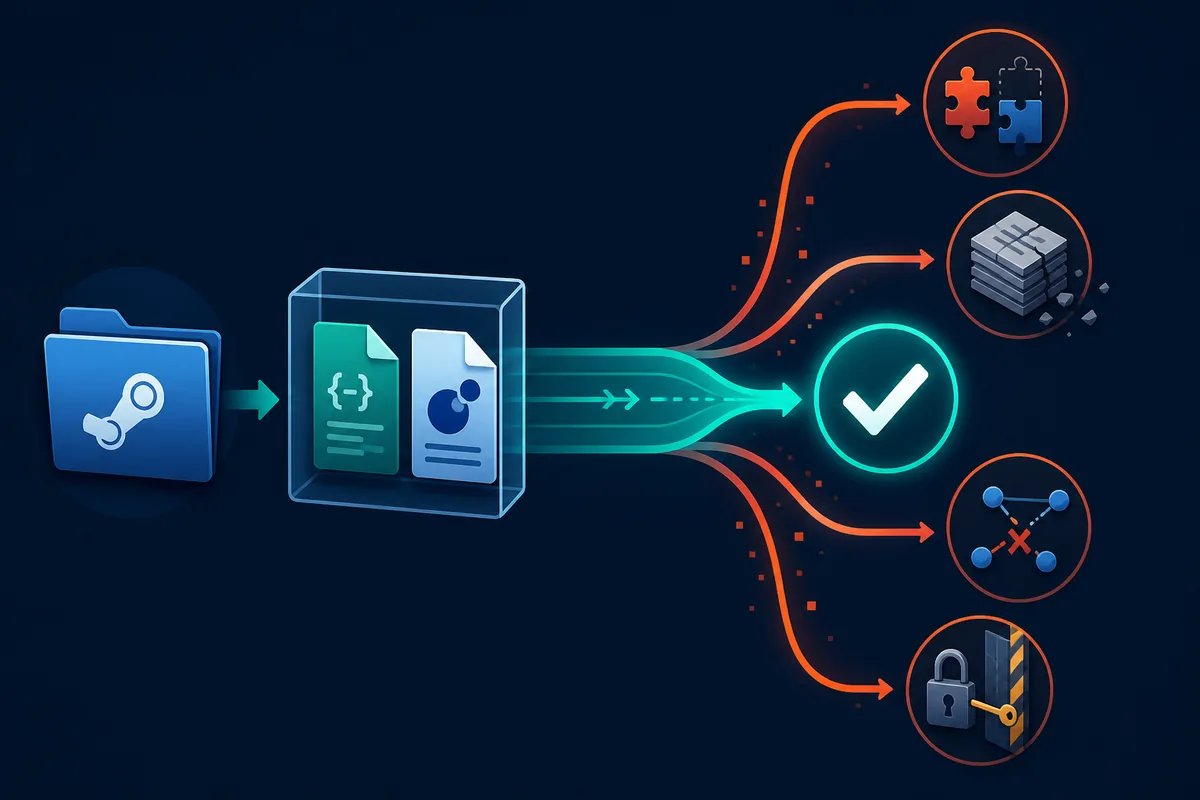
The search phrase steamtools not working covers several different failures. SteamTools may open but show no game, an import may do nothing, a package may produce a network error, or Steam may still show Install after files were moved. Those symptoms look similar from the outside but need different first checks.
This guide is for legitimate local troubleshooting and file consistency. It does not bypass Steam ownership, licensing, account security, or platform protections. The goal is to preserve your files, avoid unsafe mirrors, and identify whether the problem comes from the source package, Steam library state, the client, or the network.
1. Check the SteamTools release and source first
Before changing a manifest or blaming the client, check the first-party release page. At the time of this update, the official BeyondDimension/SteamTools release metadata lists version 3.1.0, published on March 11, 2026. The release includes separate Windows x64, macOS, and Linux packages. Treat that as a verification point, not as a promise that every package or older add-on is compatible.
A common mistake is to download a renamed archive from a search result and then diagnose its failure as a SteamTools bug. Compare the publisher, release tag, platform, file name, and archive contents. If a page claims a newer build but does not provide a traceable first-party release record, do not call it the latest version and do not use it as the next troubleshooting step.
This article intentionally uses the release page as a where-to-verify reference instead of adding a SteamTools download button. The site does not need to guess a mirror, temporary CDN URL, checksum, or safety result. If your installed build is older, update through the first-party release flow, restart the client, and retest the smallest reproducible case.
| What you see | First check | Why it matters |
|---|---|---|
| SteamTools opens but nothing imports | Record the installed build and compare the release source | A stale build can misread a newer package |
| A download page claims a newer version | Look for a matching first-party release tag | A search snippet is not release evidence |
| Windows, macOS, and Linux files are mixed | Use the asset for the current platform | The package type and runtime must match |
| The problem started after an update | Save the old package and note the update date | The change may be version drift, not a damaged file |
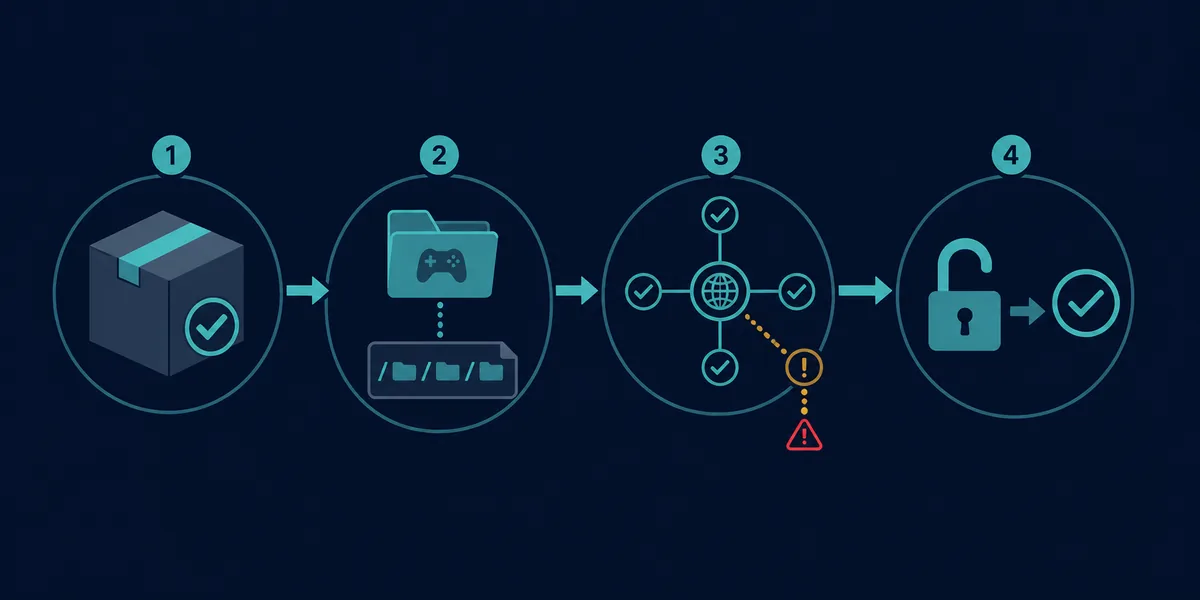
Release rule
Verify the source and platform before editing local files. A release page can confirm what exists; it cannot prove that an arbitrary package or manifest is safe.
2. Match AppID, manifest, Lua, JSON, and key files
If SteamTools starts but the game is missing, the package itself is the next suspect. Confirm the exact Steam AppID before looking at file names. Editions, demos, DLC, soundtracks, test apps, and regional entries can have different IDs even when their names look almost identical.
Then inspect the archive without running an installer. A coherent package should tell one consistent story: the Lua script, manifest files, JSON metadata, and any VDF or key data should point to the same app and compatible release context. A file can be real and still be wrong for the selected AppID.
Do not mix a Lua file from one source with manifest files from another source just because the filenames look convenient. Mixing updates is a frequent reason for import errors, missing depots, or a package that appears to work but leaves Steam in an unexpected state.
| File or signal | What to compare | Stop and recheck when |
|---|---|---|
| AppID | Steam store URL, filename, Lua, and JSON | One identifier points to a different app or edition |
| Manifest files | Depot and build context | The package contains unrelated or unexplained depots |
| Lua script | AppID and package relationship | The script belongs to a different archive or update |
| JSON metadata | Title, source, date, and listed depots | The description contradicts the visible files |
| VDF or key data | Whether the package actually expects it | A password archive or forced executable hides the contents |
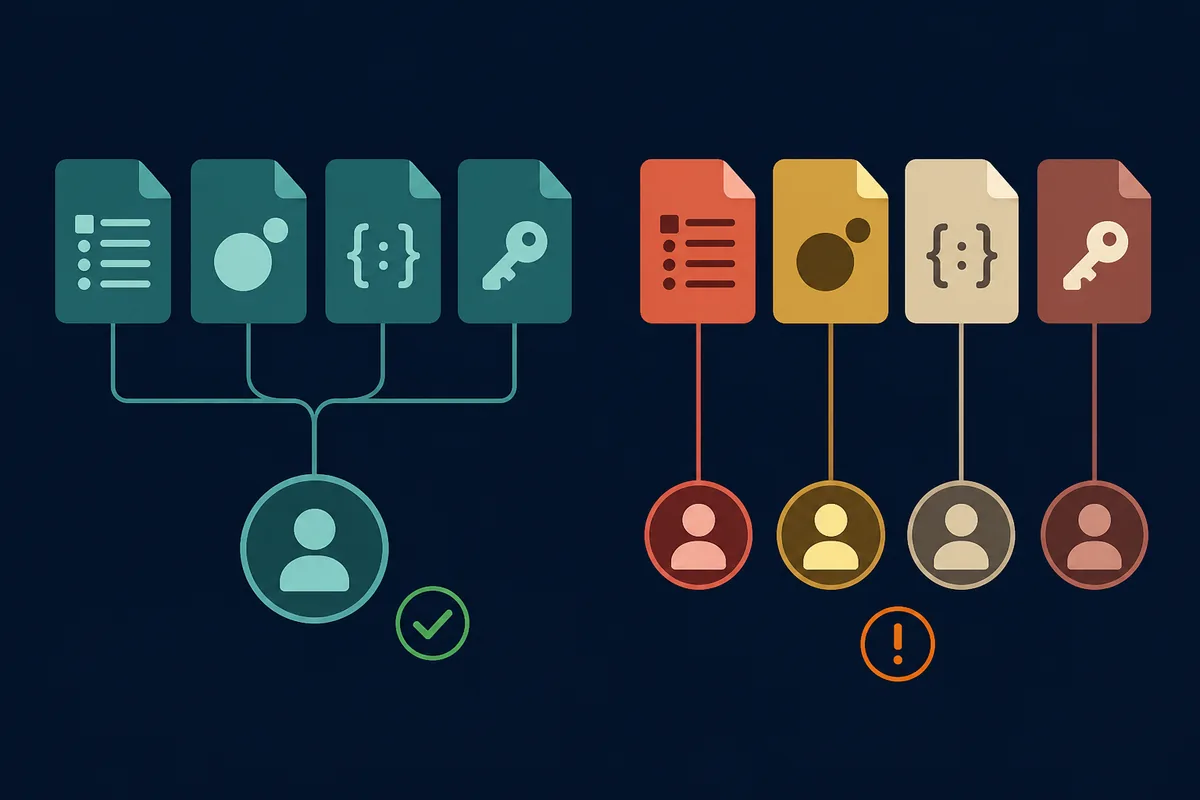
File rule
Before changing SteamTools settings, prove that the files describe the same AppID. If they do not, a reinstall or cache clear will not repair the mismatch.
3. Match the symptom to the likely cause
The phrase why is my steamtools not working is too broad to be a diagnosis. Use the first visible symptom to choose one low-risk check. Make one change, record the result, and only then move to the next branch. That keeps a useful trail if you need to restore a backup or ask for support.
Do not treat a network error, an empty library, and a missing manifest as the same problem. A network issue can prevent a valid package from loading, while an empty library can come from a path or AppID mismatch even when the connection is fine.
| Symptom | Likely area | First safe action |
|---|---|---|
| SteamTools opens, but no game appears | AppID, package path, or library registration | Confirm the AppID and visible file location |
| Lua imports with no visible change | Lua/package mismatch or unsupported state | Compare Lua, manifest, JSON, and release context |
| Network error or timeout | Connection, DNS, proxy, or source availability | Retry the first-party source and test the connection separately |
| Steam shows Install after files were moved | Steam library or appmanifest state | Confirm the library root and back up local records |
| The problem began after a game patch | Old manifest or depot context | Obtain a compatible package and verify again |
| A downloaded archive contains an unexpected EXE | Untrusted wrapper or mirror | Do not run it; keep the transparent text files separate |
One-change rule
A clean troubleshooting log is more valuable than five simultaneous resets. Note the symptom, the single change, and whether the result changed.
4. Check the Steam library and local file state
If files exist but SteamTools or Steam does not show the game, verify the library root before editing anything. The matching appmanifest file normally sits directly inside the library's steamapps folder, while installed game data is usually below steamapps/common. A second drive, moved library, or renamed folder can break the relationship.
Close Steam and SteamTools before copying or editing local records. Back up the existing appmanifest file, record the full library path, and note the AppID and installed folder name. Do not delete the common folder simply because Steam displays Install; discovery or verification may still be possible.
A generated AppManifest file is not proof of ownership, current depot state, or a healthy installation. If you use the site's generator, treat the output as a readable local starter file and let Steam verify the real library state.
- Pause active work
Stop downloads, preloads, or verification jobs before changing local files.
- Exit both clients
Use Steam > Exit and close SteamTools so neither program overwrites your backup.
- Record the library
Write down the drive, steamapps path, common folder, AppID, and file sizes.
- Check the relationship
Compare the appmanifest filename, its AppID, the install directory, and the actual game folder.
- Let Steam verify
Prefer the normal library discovery and verification flow before using a generated local record.
Path rule
A correct file in the wrong Steam library is still wrong. Match the appmanifest, library root, and common folder as one unit.
5. Test network, permissions, and client state
When the message is steamtools network error, separate connectivity from package validity. First open the first-party release page in a normal browser and confirm that the service is reachable. Then retry the smallest supported action in SteamTools. If only one source fails, the problem may be source-side or package-specific rather than a local installation failure.
Check whether a VPN, proxy, DNS filter, antivirus rule, or corporate firewall is interfering. Do not disable security software permanently. If you have permission to test, use a short, reversible comparison on a trusted network and restore the original settings immediately after the test.
Finally, restart SteamTools and Steam after closing active jobs. If the application needs access to a protected folder, use the normal operating-system permission flow and avoid running random files as administrator. Elevated access can hide the real path problem and can make an untrusted package more dangerous.
| Check | Low-risk test | What not to assume |
|---|---|---|
| Release page | Open the first-party page and compare the tag | A reachable page does not validate every mirror |
| Network | Try a trusted connection or remove a temporary proxy test | A timeout does not prove the manifest is bad |
| Permissions | Confirm the selected folder is writable for the intended app | Administrator mode is not a universal fix |
| Client state | Close, restart, and retry one known-good package | A restart cannot repair mismatched IDs |
| Security tools | Review a logged block instead of disabling protection | Do not whitelist an unknown executable blindly |
Network rule
Use a reversible comparison and preserve security settings. Never turn a network test into permission to run an unverified installer.
6. What to do after a Steam or game update
A package can stop working after a Steam client update or a game patch even when no local file was deleted. Manifest and depot context can change, and a Lua script that matched an earlier package may no longer describe the same release. Record the update date before you start replacing files.
Keep the old package in a backup folder, download only from a source you can trace, and compare the new package before importing it. If the new release page has no matching asset for your platform, wait for a supported build rather than forcing a different archive.
If the issue is really Steam library recognition, use the AppManifest guide and the normal Steam verification flow. If it is a package identity problem, use the AppID Finder or the manifest generator pages to re-check the starting ID. This separation prevents a local ACF repair from being mistaken for a SteamTools release fix.
- Capture the change
Write down the Steam or game update date and save the working package before testing a replacement.
- Verify the source
Use the first-party release record and match the operating-system asset.
- Recheck identity
Compare AppID, manifest names, Lua metadata, and any listed depot context.
- Test one package
Import one coherent package without mixing files from the previous version.
- Restore if needed
If the result is worse, close the clients and restore the backup instead of deleting evidence.
Update rule
Version freshness and package consistency are separate checks. Passing one does not prove the other.
7. Choose the right page on this site
Not every SteamTools question needs a new download. Use the existing tool or guide that matches the actual job, and keep this article as the troubleshooting map. That keeps search intent clear and reduces the temptation to replace files without knowing what failed.
If you are searching for steamtools manifest, start with the existing generator guide. If you are looking for an AppID, use the AppID Finder. If Steam forgot an installed game, use the AppManifest guide. If the issue is a depot output folder or cache, use the corresponding folder guide.
Intent boundary
Troubleshoot here; use the generator, finder, or AppManifest guide only after you know which file or lookup task you actually need.
SteamTools Not Working FAQ
First-party references and further reading
- SteamTools 3.1.0 release page — First-party release record checked on August 6, 2026; use it to verify platform assets and release tags.
- SteamTools source repository — First-party source and issue context for the SteamTools project.
- Steam Subscriber Agreement — Steam's official account, service, and platform agreement; this guide does not override it.
- Steamworks Documentation — Applications and depots — Official background on Steam applications, depots, and content organization.
Continue with the matching guide
Use the troubleshooting article to isolate the failure, then move to the narrowest existing page for the next action. Avoid treating a generator, finder, and local AppManifest repair as the same task.
Last updated: August 6, 2026
Open the first-party release page