Steam Depotcache Folder: What It Is and When to Delete It
A cautious guide to the temporary files in Steam depotcache, the difference from installed games, and the safest cleanup order when downloads are stuck or storage is tight.

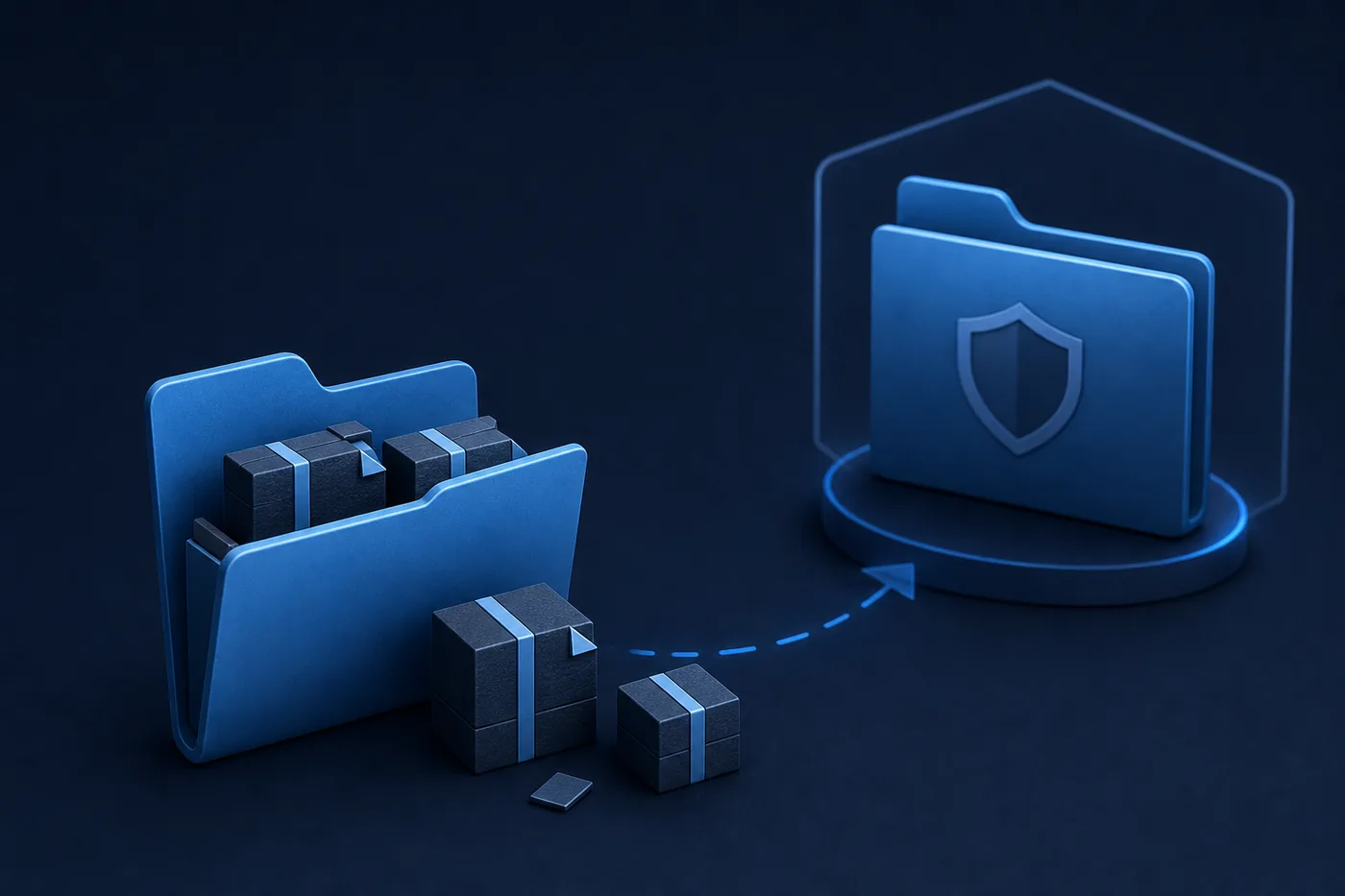
The Steam depotcache folder can become surprisingly large because SteamPipe does not always place downloaded data straight into a playable game directory. Updates, encrypted preloads, and content chunks may wait in a cache while Steam validates, decrypts, or unpacks them. That makes the folder look disposable, but timing matters.
A manual cleanup is usually recoverable because Steam can download required data again. It is not consequence-free: an unfinished 80 GB preload can return to zero, and a paused update may need to reacquire files. The safest answer is therefore not simply yes or no. First identify whether Steam is actively downloading or unpacking and whether the files are your only copy of a preload.
This guide separates depotcache from appmanifest files, steamapps/common, shadercache, and Steam's built-in download cache command. It also explains a reversible rename-first method so you can test a cleanup without immediately destroying data.
What Is the Steam Depotcache Folder?
Steam distributes applications as depots. During a download or preload, the client can store compressed or encrypted depot chunks and related working data in a folder named depotcache. The files may be temporary from the reader's perspective, but Steam can still be using them for installation, patching, verification, or unpacking.
Depotcache is not the normal home of an installed game. A Steam-managed installation usually lives under steamapps/common, while the matching appmanifest_<AppID>.acf file sits one level higher in steamapps and records local app state. Raw console depot downloads can also appear under steamapps/content. Confusing these locations is the main reason risky cleanup advice spreads.
The folder's size alone does not prove corruption. A new release preload can legitimately occupy tens of gigabytes before launch, and a large update can need both downloaded data and temporary unpacking space. Check Steam's Downloads page, disk activity, timestamps, and the game status before removing anything.
| Location | Typical contents | Delete casually? |
|---|---|---|
| Steam/depotcache or steamapps/depotcache | Downloaded or preloaded depot working data | No; check active downloads first |
| steamapps/common/<Game> | Installed game files | No |
| steamapps/appmanifest_<AppID>.acf | Steam library state metadata | No |
| steamapps/shadercache | Per-game shader cache | Different cache and different effect |
| steamapps/content | Raw download_depot output | Preserve if you need the downloaded depot |
Where Depotcache Lives and How It Differs from steamapps/common
A common Windows path is C:\Program Files (x86)\Steam\depotcache. Some libraries or workflows also expose depotcache under a SteamLibrary\steamapps root. On Linux, Steam Deck, macOS, or a custom Windows library, start from the actual Steam installation and each configured storage library rather than copying one fixed path.
Use folder names and timestamps as evidence. steamapps/common contains recognizable game directories. Appmanifest files use an AppID in the filename. Depotcache commonly contains numbered or unfamiliar chunk files that track staged download data. If a folder contains a normal game tree, executables, saves, or mod work, stop and verify the path before cleaning.
Never combine generic advice such as 'delete every folder with cache in its name.' appcache, htmlcache, shadercache, depotcache, and the Downloads page's cache command solve different problems. Broad deletion can increase redownloads and make diagnosis harder.
Can You Delete the Steam Depotcache Folder Safely?
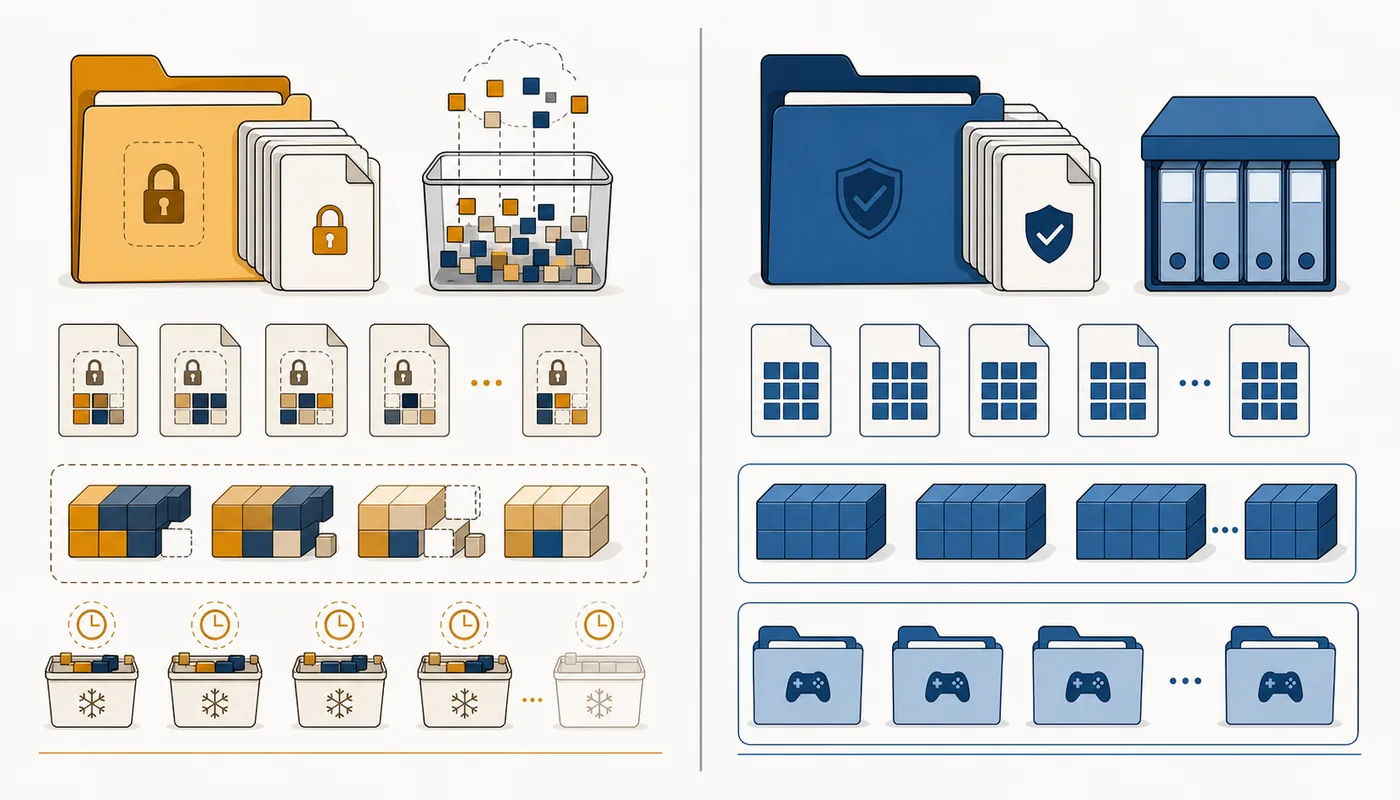
Usually, Steam can rebuild or redownload depotcache data, so deleting the cache does not normally erase completed game files stored in steamapps/common. Valve's Steamworks troubleshooting documentation even recommends exiting Steam and deleting appcache and depotcache in a specific developer upload troubleshooting context.
That does not mean every moment is safe. Do not clear depotcache while Steam shows Downloading, Updating, Preloading, Verifying, Patching, or Unpacking. Those cached chunks may be the work already completed. Removing them can restart the transfer or force Steam to rebuild the update from the beginning.
Preloads deserve extra caution. Their encrypted packages may remain in depotcache until the release unlocks. If you delete them to reclaim space before launch, expect to download the preload again. A user can interpret that as a deleted game even though the final installed files were never created.
If storage pressure is not urgent, leave a working download alone. If Steam is stuck, use the official Clear Download Cache action first. Valve states that this action does not affect installed games, but it requires signing in again. Manual folder deletion should be a second-line step with a backup or rename when possible.
The Safest Way to Clear Steam Depotcache
Start with a reversible workflow. Record the affected game's AppID, the download progress, and the current folder size. Make sure you know your Steam sign-in details before clearing the official cache because the client may ask you to authenticate again.
Use Steam > Settings > Downloads > Clear Download Cache before manually touching files. This is Valve's supported first step for games that do not download or launch. After Steam restarts, retry the affected download and allow enough time for disk-heavy unpacking even when network activity appears low.
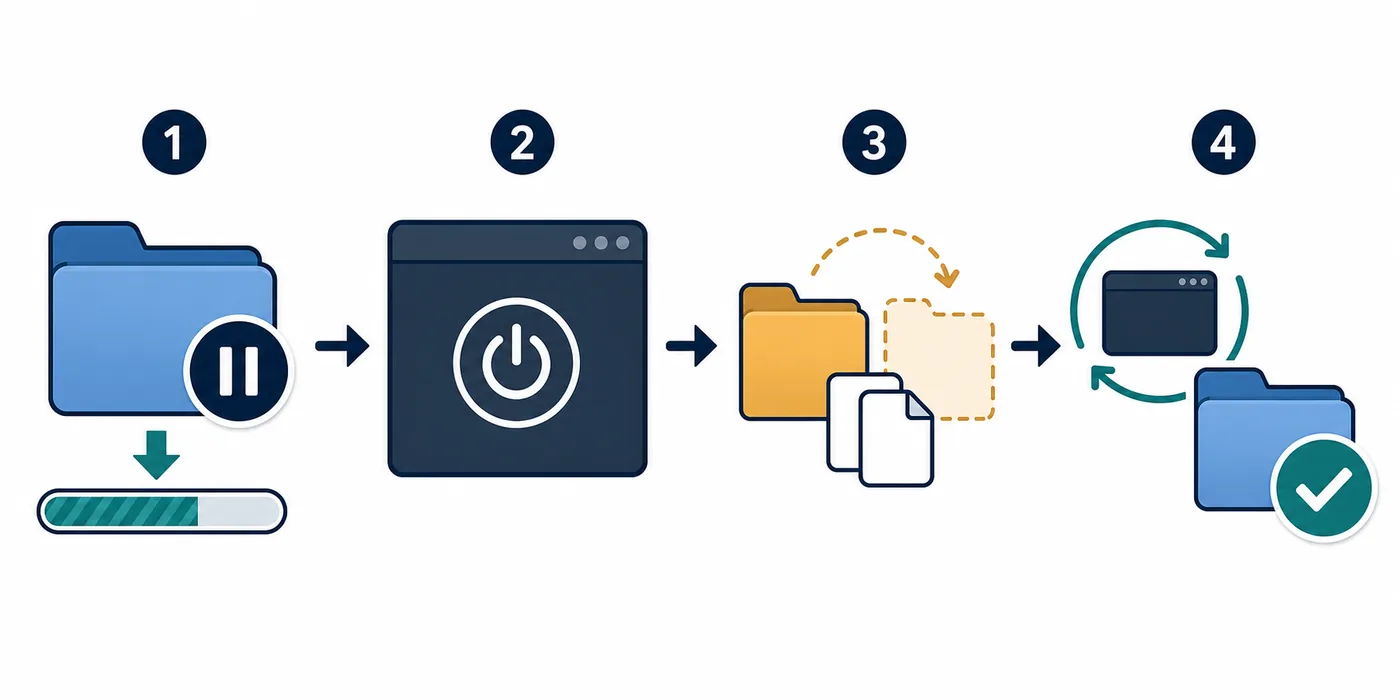
If the problem persists and you choose manual cleanup, fully exit Steam from the tray and verify no steam.exe process is writing to the folder. Rename depotcache to depotcache-backup instead of deleting it immediately. Start Steam, test the affected task, and remove the backup only after the client behaves normally and you accept any required redownload.
- Pause the affected download and note its progress, AppID, target drive, and available disk space.
- Exit Steam completely; do not clean files while it is downloading, verifying, or unpacking.
- Try Steam's official Clear Download Cache command and sign in again.
- If manual action is still needed, rename depotcache to depotcache-backup or copy it to another drive.
- Restart Steam and test one affected download before deleting the backup.
- Keep steamapps/common and appmanifest_<AppID>.acf files out of the cleanup scope.
What You May Lose When You Delete Depotcache
The main cost is time and bandwidth, not usually saved progress. Steam may reacquire cached chunks, restart a preload, or repeat part of a large update. Cloud saves and local save folders are separate, but never use that fact as permission to delete unrelated Steam directories.
A second risk is misidentification. Some advice mentions both Steam/depotcache and SteamLibrary/steamapps/depotcache, while users may also see steamapps/content or a tool's output folder. Confirm the full path. Deleting raw depot output that you intentionally downloaded is different from clearing Steam's working cache.
A third risk is insufficient free space. Steam may need the cached compressed data and enough additional room to unpack it. Deleting the cache can free space but also destroys completed download work. Moving or temporarily backing up the cache to another drive can be safer than immediate deletion when you are close to release day.
Finally, community fixes are inconsistent. One user may report an instant fix; another may report that a 90 GB download restarted. Treat forum advice as experience, not a guarantee, and prefer Valve's supported cache command before manual deletion.
| Situation | Safer action | Likely consequence |
|---|---|---|
| No active download; cache is old | Rename, test, then delete | Steam may recreate a smaller cache |
| Active update or unpacking | Wait and monitor disk activity | Deletion can restart work |
| Encrypted preload before release | Keep it unless space is critical | Deletion usually means downloading again |
| Download is stuck | Use Clear Download Cache first | Sign-in and retry may be required |
| Path is uncertain | Do not delete; identify common, content and appmanifest first | Avoids removing installed or intentionally downloaded files |
Does Steam Automatically Manage the Depotcache Folder?
Steam creates and reuses cache data as downloads, updates, and preloads require it. In a healthy workflow, the client should manage that lifecycle without routine manual cleaning. The presence of depotcache is therefore normal and is not evidence that malware or a third-party manifest tool installed it.
Cleanup may lag after an interrupted download, failed preload, crash, or low-space event. Before acting, restart Steam cleanly and allow the Downloads page to settle. Compare the folder's modified time with the affected game's activity. Old files with no matching task are a better cleanup candidate than files changing every few seconds.
Do not schedule automatic deletion of depotcache. A scheduled cleaner cannot know whether Steam is staging a preload or patch. If recurring growth is the problem, investigate failed downloads, storage capacity, library placement, and whether the client repeatedly retries the same update.
Steam Download Stuck or Unpacking Slowly: What to Check First
A download that appears stuck can still be unpacking. Network usage may fall to zero while disk and CPU activity continue. Wait before deleting cache, especially after a large encrypted preload or patch. Check Steam's progress labels and Windows Task Manager or the equivalent system monitor.
Confirm the target drive has room for both the staged download and the installed result. Clearing depotcache can provide temporary space, but if the final install still does not fit, the same failure will return. Moving another game through Steam's Storage interface is safer than guessing at internal files.
If the client genuinely stops progressing, restart Steam, use Clear Download Cache, verify the download region, and retry. Manual depotcache cleanup is reasonable only after you accept the redownload risk and have separated cache files from steamapps/common, appmanifest ACF files, saves, and intentional download_depot output.
When a completed game disappears from the library, do not delete more files. Check whether its folder remains under steamapps/common and whether appmanifest_<AppID>.acf is present. The appmanifest controls local library recognition; depotcache cleanup cannot replace it. Use the site's AppManifest Generator only as a cautious repair aid and let Steam verify real files.
- Wait while disk or CPU activity shows unpacking work.
- Confirm enough free space exists for both staged and installed data.
- Restart Steam and use the supported Clear Download Cache action.
- Verify library path, download region, and the affected AppID.
- Only then rename depotcache and test a manual cleanup.
- If the game vanishes, inspect steamapps/common and appmanifest files before downloading again.
Steam Depotcache FAQ
Is Steam depotcache safe to delete?
It is usually recoverable because Steam can download cache data again, but clear it only after Steam is fully closed. Active updates and preloads may restart, so rename or back up the folder first when redownloading would be costly.
Will deleting depotcache uninstall my games?
Completed games normally live in steamapps/common, not depotcache. However, deleting staged preload or update data can force another download, and deleting the wrong neighboring folder can cause real damage.
Does Steam automatically manage depotcache?
Yes, Steam creates and reuses it as needed. Routine scheduled deletion is a bad idea because an automated cleaner cannot tell whether the client is staging an active preload or update.
What is the difference between depotcache and Clear Download Cache?
Clear Download Cache is Valve's supported client action under Settings > Downloads. Manually deleting depotcache changes files on disk and should be a second-line step after Steam is closed.
Why is depotcache so large?
Large preloads, major updates, interrupted downloads, and staged encrypted chunks can all increase it. Check the Downloads page, file timestamps, disk activity, and upcoming releases before deciding that the files are stale.
Should I delete depotcache when Steam is unpacking?
No. Low network usage during unpacking is normal because Steam may be working on disk. Deleting the cache at that moment can discard completed transfer work and restart the process.
Official and community evidence
- Steam Support — Clear download cache — Valve's supported cache-clearing sequence and sign-in warning.
- Steamworks — Uploading to Steam — Valve documentation that includes appcache and depotcache cleanup in a specific troubleshooting flow.
- Steam Community — stuck download discussion — Community reports illustrate both the workaround and the possibility of lost download progress.
- Reddit — what is depotcache and can I delete it? — User experiences show why preloads and active updates need a stronger warning than a blanket 'safe to delete' answer.
Continue with the right Steam folder workflow
Depotcache is only one Steam storage location. Use these guides when the real task is finding raw depot output, installing DepotDownloader, or checking a manifest package.