How to Get Lua by ID: A Steam AppID Guide
Use the AppID-first method to identify a Steam title, choose the right Lua workflow, and check package files before they reach a local tool.

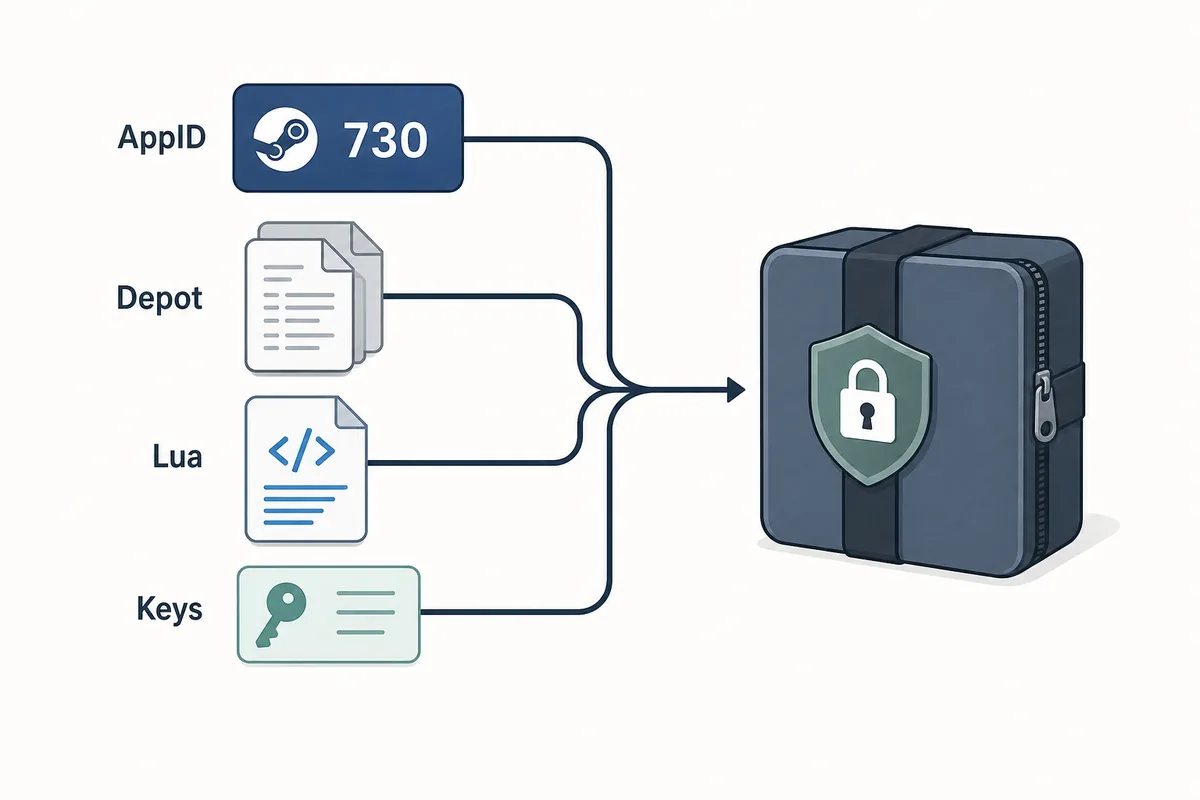
On this page
The phrase lua by id sounds like one download action, but it can describe several jobs. One person may want a Lua starter for a known AppID; another may need a Lua and depot-manifest package. Someone else may identify the game number before using a Steam tool. Each has different inputs and failure points.
Start with the Steam AppID, not a filename copied from a mirror. Confirm the title and edition, choose the file layer you need, then inspect a source or generator. This avoids treating a base game, DLC, demo, soundtrack, or test application as interchangeable because the names look similar.
This guide explains the terminology and a cautious workflow for authorized file management and troubleshooting. It does not provide instructions to bypass ownership, DRM, licensing, account restrictions, or Steam security checks. A number can identify an application, but it cannot grant access to content or make an unverified package trustworthy.
What Does Lua by ID Mean?
To get Lua by ID, start by using a numeric Steam AppID as the lookup key for a Lua file, starter, or larger package. The number identifies an application entry, while the Lua file belongs to a particular workflow. A script can be readable and still point to the wrong game, edition, update, or depot set.
The phrase often appears beside steam lua download, lua manifest, and Steam AppID. Readers move from choosing an ID to deciding whether Lua is enough and then checking a package. Treat the query as an ID-and-context problem, not as a promise that every AppID has one universal Lua file.
An AppID is an identifier, not an entitlement
Use the number to narrow the application and compare related files. Do not treat it as proof of ownership, current availability, or compatibility with every account and platform.
Find and Verify the Steam AppID
For a known game, the Steam store page is a useful first check because the numeric part of its app URL identifies the product. Cross-check the title, edition, and product type before copying it. SteamDB can provide a secondary metadata check, but your final choice must match the exact product you manage.
A base game, demo, DLC, soundtrack, dedicated server, tool, or regional entry may have its own AppID. If a package uses one number in its filename and another in its JSON or Lua data, stop before importing it. Resolve the identity mismatch first; more files will not fix an incorrect ID.
| ID check | What to compare | Why it matters |
|---|---|---|
| Store identity | Title, edition, and AppID in the official store URL | Prevents choosing a demo, DLC, or similarly named product |
| Package identity | AppID in the folder, Lua text, JSON, or notes | Shows whether the files describe the same application |
| Platform context | Windows, Linux, macOS, language, or branch notes | A correct ID can still lead to the wrong content slice |
| Update context | Source date, build note, or package history | Explains why an older Lua file may no longer match |
Check the product before the package
If the title, AppID, edition, or platform is uncertain, do not proceed to file replacement or import. Identity is the first useful validation signal.
Follow an ID-First Lua Workflow
Once the AppID is confirmed, choose the narrowest action that matches your goal. Use the browser-side Lua generator for a small starter, or the combined generator and downloader when you need a package. Review the result before opening a third-party tool.
Keep the process reversible: save originals, make one change at a time, and never mix Lua with manifest or key data from another source. If something fails, check ID, package availability, snapshot age, local path, and tool compatibility in that order.
- 1. Confirm the product
Match the game name, edition, platform, and Steam AppID. Treat DLC, demos, soundtracks, and test apps as separate entries until verified.
- 2. Define the output
Decide whether you need a readable Lua starter, a complete manifest-and-Lua package, or only an availability check. Do not download a larger package to solve a smaller question.
- 3. Check the source
Prefer a transparent documented source. Record its page, check date, visible file list, and platform or branch notes.
- 4. Inspect before import
Open the archive as a copy, compare AppID references, and look for expected Lua, manifest, JSON, VDF, or key data. Do not run an unknown executable wrapper.
- 5. Validate one controlled change
Use the intended client or tool, observe the result, and keep the original backup. If the result is wrong, restore evidence before trying another package.
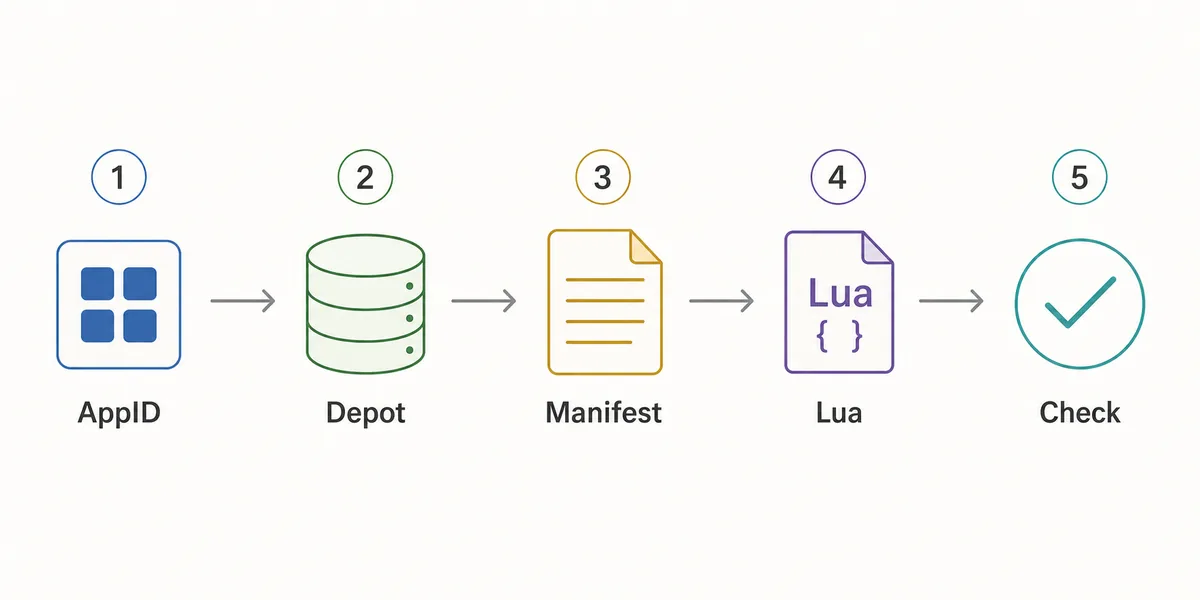
The last step is verification
A file that downloads successfully can still be for the wrong application or release. Finish by checking the result in the intended workflow, not only by checking that the archive opened.
Separate Lua, Manifest, and Package Files
Lua by ID becomes confusing when several file types are presented as one package. Lua is usually an instruction or mapping layer; a depot .manifest describes a content snapshot; JSON adds context; and VDF or key data may support a workflow. None replaces the local appmanifest_<AppID>.acf record used in a Steam library.
The installed game directory is a separate payload layer. Keeping it separate from metadata helps you choose the correct page and inspect text or data files without accepting a forced installer or hidden archive.
| File or layer | Usual role | What to verify |
|---|---|---|
| Lua file | Workflow instructions or package mapping | AppID and package context agree with the intended tool |
| Depot .manifest | Metadata for a depot content snapshot | Depot, branch, platform, and source context are explained |
| appmanifest_<AppID>.acf | Local Steam library record | Filename and install directory belong to the same library |
| steamapps/common folder | Installed game payload | The path and AppID match; the folder alone is not a license |
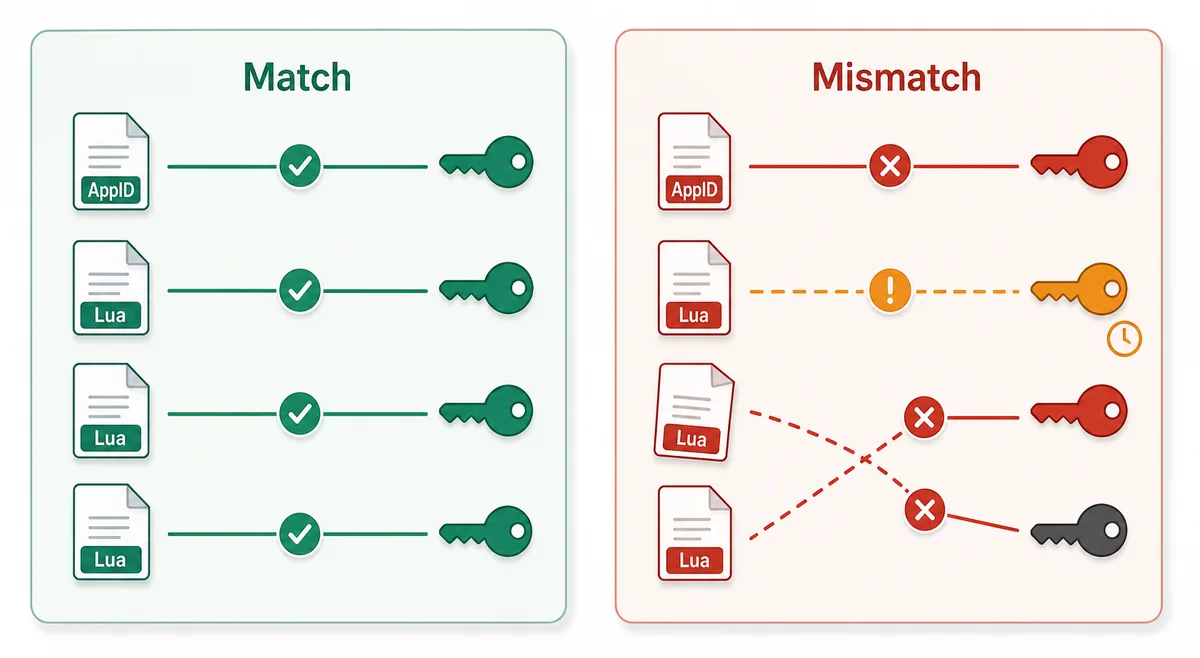
Matching names are not matching layers
Before replacing or importing anything, identify the file type, parent folder, AppID, and intended client. A familiar extension cannot prove that the file solves your task.
Choose the Right Route Without Unsafe Shortcuts
The best route depends on the result you need, not on the biggest promise in a search result. Use the AppID Finder when you only know a game name, and use the Steam Manifest Finder when you want to check availability before downloading.
For a small Lua starter, the Steam Lua Generator creates a local browser-side file from the numeric ID; it does not claim manifest, key, ownership, or current depot data. For a full package, use the main generator or downloader. For a missing local Steam record, use the AppManifest route.
Use the narrowest tool
A focused route reduces both confusion and unnecessary file handling. When the request is only identification, stop after the ID is verified.
Troubleshoot Wrong or Stale Lua by ID Results
If a Lua-by-ID result does not work, begin with identity rather than deleting files. Recheck the AppID against the product page, then compare it in the Lua file, manifest package, JSON notes, and folder name. A mismatch can look like a missing manifest or failed import.
Next, check source and update context. Packages can change with a game, branch, platform, or tool update. Do not call a file latest, safe, or official merely because a mirror says so. Keep a backup, make one reversible test, and use the guide for the visible symptom if it still fails.
Restore evidence before retrying
The fastest safe diagnosis is usually AppID, file layer, source, and update context in that order. Preserve the original so every later comparison remains meaningful.
Lua by ID FAQ
Official and technical references
- Steamworks — Applications and depots — Official Valve background on applications, depots, and how Steam content is organized.
- Steam Web API Overview — Official documentation for Steam Web API concepts; an API key is separate from an AppID and a Lua package.
- Steam Subscriber Agreement — Steam's official service and account agreement; this guide does not override its restrictions.
- Steam Support — Verify Integrity of Game Files — Official support reference for the normal local file verification workflow.