DepotDownloader Login Error: Safe Fixes for Password, 403, and AccessDenied
A practical decision path for invalid-password prompts, AccessDenied, 403 responses, connection retries, and account or branch limits.


On this page
Quick answer: classify the failure first
For a DepotDownloader login error, read the exact terminal message before changing the command. An invalid-password message points to the username, password prompt, quoting, or account state. AccessDenied or a 403 usually means Steam rejected the session, license, branch, or request. A repeated connection failure points to DNS, TLS, firewall, or a temporary Steam service problem. Start with the official SteamRE README, test the smallest command in a separate folder, and never paste a password into a random wrapper. A login that succeeds still does not prove that the selected AppID, DepotID, or ManifestID is available to the account.
A DepotDownloader login error is frustrating because the same command can fail at several different layers. The terminal may report invalid password even when the password is correct, show AccessDenied after a remembered session, or retry a connection before it ever checks the depot. Those messages are clues, not interchangeable diagnoses. This guide starts with the exact error state and then checks the smallest relevant input.
The official SteamRE project describes DepotDownloader as a console program. Its README documents the current installation paths, the AppID and depot command shape, and the authentication parameters. Community reports add useful failure examples, but they are not authority for account access or a current release. Use them to recognize symptoms, then return to the repository and your own terminal output.
This article covers authorized troubleshooting only. It does not explain how to bypass ownership, branch restrictions, encryption, rate limits, or Steam security. A successful sign-in is only the beginning: the account still needs access to the requested app and depot, and the IDs still need to match the content you intend to inspect.
1. DepotDownloader Login Error: Classify the Failure
For a DepotDownloader login error, copy the complete error line and the command options around it into a private note. Do not publish a username, password, refresh token, QR token, or full log containing account identifiers. Record whether the failure happens before the password prompt, immediately after credentials, during Steam3 login, or only after an AppID and DepotID are requested. Timing narrows the problem more reliably than a guessed fix.
Use the table below as a routing map. The labels are not promises about Steam's internal reason; they tell you which check is least risky to try first. If two symptoms appear together, start with the earliest failure in the log and rerun only after that state changes.
| Terminal symptom | First layer to check | Do not assume |
|---|---|---|
| invalid password or invalid credentials | Username, password prompt, quoting, account state | The password is definitely wrong |
| AccessDenied or HTTP 403 | Session, license, branch, encrypted depot, request policy | A different ManifestID will grant access |
| Connection to Steam failed; trying again | DNS, TLS, firewall, proxy, service availability | The account is banned or the depot is missing |
| Login succeeds but download is rejected | AppID, DepotID, ManifestID, branch and license | Authentication proves depot permission |
| Only remembered login fails | Cached session and sign-in method | The saved session is still valid because it worked once |
Start with the earliest failure
A credential error is not a depot-ID error. Keeping those layers separate prevents random command changes from hiding the real cause.
2. Check the Official Login Inputs and Release Source
Before troubleshooting a DepotDownloader login error, confirm that the binary and syntax came from the SteamRE project. The README says the program runs from a console and can be installed from the GitHub releases page, winget, or Homebrew. It also shows an AppID command with optional username and password arguments. A repackaged executable may add a GUI, wrapper, or password field that is not part of the documented tool, so its error messages cannot be treated as the official behavior.
Open the current README and compare the option spelling with your local version. If a forum post uses `-user` while the current documentation uses `-username`, check the release you installed before assuming either spelling is universally accepted. Prefer the interactive password prompt when the tool supports it; command history, process listings, CI logs, and screenshots can retain a password passed on a command line.

Repository first
Use SteamRE/DepotDownloader and its release notes as the reference for binaries and option names.
Console evidence
Keep the exact command, version, and first error line in a private note without secrets.
Interactive password
Avoid putting a password in a shell command when the documented prompt can collect it.
Separate output
Use a new test directory so a failed authentication attempt cannot alter a live library.
- Check the binary source
Compare the file with a GitHub release or a trusted package manager entry; delete wrappers that bundle unrelated installers.
- Check the version
Record the version printed by the program and read the matching README or release notes before copying a command.
- Check the option names
Use the documented username, password, app, depot, manifest, branch, and directory options for that release.
- Check the shell
Run from a clean terminal and quote only the values that need quoting; do not expose credentials while debugging.
A clean source produces useful evidence
If the binary is a wrapper or the syntax is stale, every later error classification becomes unreliable.
3. DepotDownloader Login Error: Fix Invalid Password
A DepotDownloader login error with an invalid-password message does not prove that the password text is wrong. A swapped username and SteamID, a copied trailing space, a shell escaping issue, or an account that expects a different sign-in step can produce the same surface error. Type the username carefully, let the documented interactive prompt collect the password, and test the account in the official Steam client or website before testing the command again. Never paste the password into a web form that only claims to be a DepotDownloader helper.
Special characters deserve a controlled test. Shells interpret quotes, backslashes, percent signs, exclamation marks, and variable markers differently. If you must pass a value as an argument for a documented reason, use the quoting rules for your shell and avoid placing that command in a shared history. The safer comparison is to omit the password argument and see whether the interactive prompt behaves differently. Keep one known-good test and change only the input under investigation.
| Check | Why it can look like a password error | Safe action |
|---|---|---|
| Username spelling | A two-letter swap or wrong account reaches the login endpoint with valid-looking text | Retype the username from the account record; do not share it publicly |
| Interactive prompt | Shell quoting can change the characters sent as a command argument | Remove the password argument and use the documented prompt |
| Trailing spaces | Copy and paste can include an invisible character | Type the value once in a private terminal |
| Two-factor or guard step | The account may need a current approval flow | Complete the official Steam approval and retry once |
| Account state | A password change or sign-in challenge can invalidate an old session | Sign in through Steam and confirm the account state |
| Rate limiting | Repeated attempts can keep returning a generic credential failure | Stop retrying, wait, and use a single controlled attempt later |
- Stop repeated attempts
Save the first error and pause so a rate limit or security challenge does not become a second problem.
- Verify the account separately
Use Steam's official sign-in surface, not a mirror, to confirm the username, password, and current guard state.
- Use the interactive prompt
Run the smallest documented command without a password argument and watch the prompt for an exact response.
- Retest one variable
If the prompt works, add the AppID or other option only after authentication is stable; do not add several flags at once.
Do not turn a credential test into a download
Authentication should be isolated from depot selection. A clean login test does not require a real game download or a live library path.
4. DepotDownloader Login Error: Diagnose AccessDenied and 403
A DepotDownloader login error that ends in AccessDenied or 403 usually requires a permissions review, not more password variations. The account may not own the app, the branch may be private or password protected, the selected depot may be encrypted, or the service may reject a stale session. A manifest ID from a public discussion cannot override those rules. Confirm the exact product and branch in Steam, then compare the account and license context with the requested AppID and DepotID.
Treat a 403 as a boundary signal. You can verify the repository version, the ID chain, the branch option, and the account's official access. You should not attempt to bypass a license check, scrape a session cookie, or use a third-party “unlock” wrapper. If the account is authorized and the error persists, preserve the debug excerpt without secrets and consult the current project issues or Steam support context.
| Access state | What to compare | Stop condition |
|---|---|---|
| Base game or DLC mismatch | Store entry, AppID, and the intended edition | Do not substitute a DLC or demo ID |
| Branch or beta restriction | Branch name, password requirement, and account access | Do not guess a branch password |
| Encrypted depot | Whether the account and branch can receive the key | A ManifestID cannot replace an encryption key |
| Stale session | Fresh official sign-in and remembered-login state | Clear the session and retry once, not indefinitely |
| Service policy or rate limit | Time, repeated attempts, and public service status | Wait instead of rotating credentials or wrappers |
Permission errors have a real boundary
When Steam says the session or depot is not allowed, the responsible fix is an authorized account or branch decision, not a bypass.
5. Separate Connection Failures from Authentication Failures
A line such as “Connection to Steam failed. Trying again” can appear before authentication or while the tool is opening a content connection. Check whether the message repeats with no credential prompt. If it does, inspect DNS resolution, the system clock, TLS inspection, firewall rules, proxy settings, and the network you are using. A temporary Steam service issue can look similar, so record the time and try once from a trusted network later rather than starting a long loop.
Do not disable security software permanently to make one test pass. If a corporate proxy or antivirus is intercepting TLS, ask the network administrator for the supported exception and keep the exact error. A working web browser does not prove that a console process can reach the same host, port, or certificate chain. Conversely, a failed console connection does not prove that the account or depot is invalid.
| Observation | Likely layer | Next safe check |
|---|---|---|
| No credential prompt appears | DNS, TLS, firewall, proxy, or service reachability | Check the network and system clock, then retry once |
| Prompt works but Steam3 login fails | Account session or authentication state | Verify the official account and use a fresh prompt |
| Only one network fails | Local firewall, proxy, or DNS policy | Compare with an authorized trusted network |
| Repeated retry loop | Temporary outage or blocked endpoint | Stop the process and preserve the first error |
| Download starts then stops | Depot permission, key, or ID mismatch | Move to the AppID/DepotID/ManifestID checks |
Connection is a separate test
First prove the console can reach Steam; only then interpret credential and depot errors. Changing passwords cannot repair DNS or TLS.
6. Clear a Remembered Session and Retest Once
A remembered login can work twice and then fail with AccessDenied or a generic sign-in error. The session may have expired, the account may have changed its password, or the local token may no longer match the current Steam guard state. Close the process, locate the documented session or configuration behavior for your release, and remove only the stale local state you understand. Keep a backup of configuration files and never upload a token or log to a forum.
Use a fresh interactive login as the comparison. If the fresh prompt succeeds while the remembered session fails, the problem is session state rather than the AppID. If both fail, return to account and network checks. If the fresh login succeeds but an authorized depot still returns 403, stop at the permission boundary and inspect the branch, license, and depot context instead of repeatedly deleting caches.
- Close the process
Do not edit a session file while DepotDownloader is running; preserve the first log and note the version.
- Back up local state
Copy the configuration or remembered-login file to a private location before removing a stale entry.
- Use a fresh prompt
Run one minimal documented sign-in and do not combine it with a large download or a new branch flag.
- Compare the result
Fresh success means the old session was stale; fresh failure sends you back to account, network, or permission checks.
One clean comparison beats ten retries
A controlled fresh session gives you evidence without multiplying rate limits or exposing more credentials.
7. Protect Credentials, Logs, and Output Folders
Troubleshooting often creates more sensitive material than the original command: shell history, debug logs, screenshots, copied terminal output, and remembered session files. Redact usernames, email addresses, account IDs, tokens, and file paths before sharing a diagnosis. Do not send a password, Steam Guard code, session cookie, or API key to a helper site that promises to repair a DepotDownloader login error. The official project documentation is useful; an unknown wrapper is not made trustworthy by using the same name.
Use a disposable output directory outside the live Steam library. A successful login can still lead to a wrong depot, a partial download, or an unexpected branch. Keep the command, version, IDs, timestamp, and first error together in a private note. Delete test output only after you have confirmed that it is not needed for a support report, and do not run an executable from an archive merely because it contains a familiar `.manifest` or `.lua` file.
Redact logs
Remove usernames, account IDs, tokens, email addresses, and local paths before sharing evidence.
Review history
Shell history and CI logs may keep a password that you thought was temporary.
Isolate downloads
Use a new folder and inspect the file list before anything touches a Steam library.
Respect access
Do not use a login fix to bypass ownership, encryption, branch, or account rules.
Security is part of troubleshooting
A fix that exposes a password or changes a live library is not a successful fix, even if the command exits with code zero.
8. Validate the AppID, DepotID, and Manifest After Login
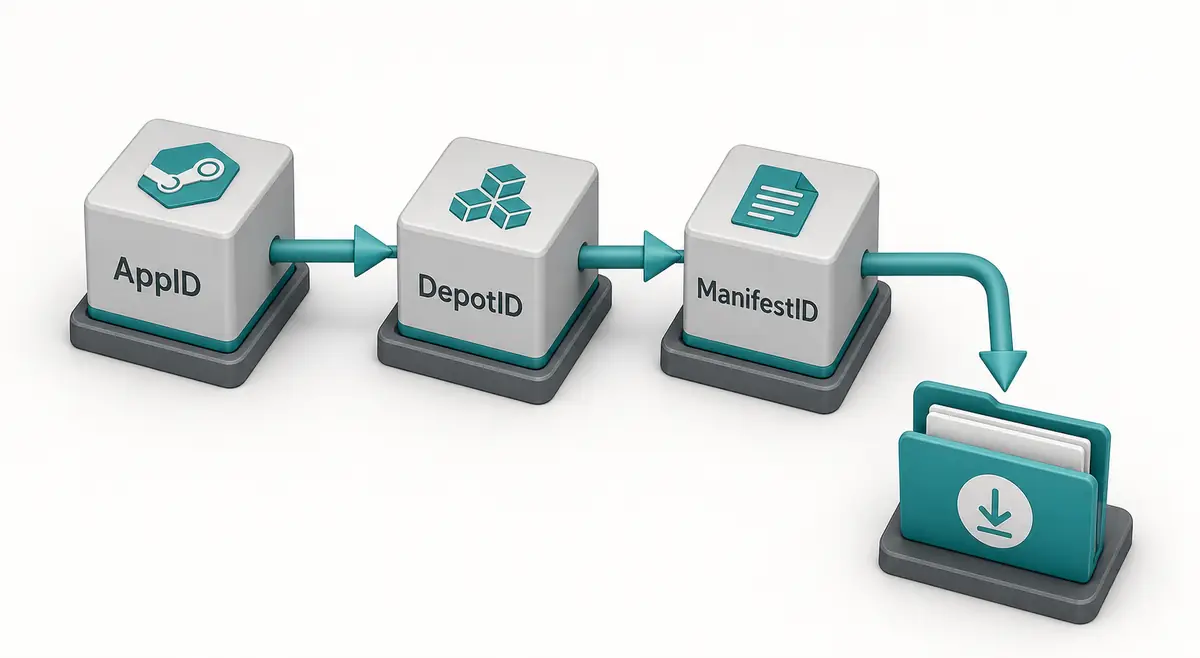
Once authentication succeeds, stop and validate the content request before downloading more. Confirm the AppID against the exact Steam store entry, then check that the DepotID belongs to the intended platform, language, DLC, or shared-content group. Use a ManifestID only when you need a particular snapshot and make sure it belongs to that depot. A login fix can reveal the next problem, but it cannot correct an ID mismatch.
Inspect the output in the isolated folder. A multi-depot game may legitimately produce only part of the expected files, while a wrong depot can produce a complete-looking but irrelevant set. If the goal is a SteamTools manifest and Lua package rather than raw depot content, use the site's finder or generator workflow instead of importing DepotDownloader output as though it were an ACF or a ready package.
| Validation | Question | Result to keep |
|---|---|---|
| AppID | Does the store entry match the base game, DLC, demo, or tool? | The exact intended product |
| DepotID | Does the depot match platform, language, and content type? | Only the needed content slice |
| ManifestID | Does the snapshot belong to that depot and branch? | A documented version or no version flag |
| Output | Is the folder separate and the file list expected? | An inspectable test result |
| Workflow | Do you need raw depot files or a manifest/Lua package? | The narrowest matching tool |
Login is not the finish line
The useful outcome is a verified, authorized, correctly identified result—not merely a green authentication message.
9. Know When a Different Workflow Is the Better Fix
If the problem is finding a correct AppID, start with an AppID lookup. If the problem is whether this site has a manifest package, use the manifest finder. If Steam reports a local library that is already installed but not recognized, read the AppManifest or libraryfolders guide. These are different tasks from fixing a DepotDownloader login error, and pushing them through one command makes the evidence harder to understand.
A practical handoff keeps the boundary explicit. Use the official DepotDownloader project for command syntax, release files, and issue history. Use the site tools for AppID discovery and manifest/Lua package availability. Keep ownership, license, branch, and security decisions with Steam and the account holder. If no authorized path exists, the correct result is to stop and contact the official support or developer rather than search for a bypass.
| Your actual task | Better starting point | Why |
|---|---|---|
| I cannot identify the exact game edition | AppID Finder | Separates base game, DLC, demo, and tool IDs |
| I need to know whether a package exists here | Steam Manifest Finder | Checks this site's package boundary before a download |
| Steam forgot an installed library | AppManifest and library guides | Focuses on local ACF and library paths |
| I need raw depot content I am authorized to access | SteamRE DepotDownloader | Provides explicit ID, branch, folder, and login controls |
| I need a ready manifest and Lua workflow | Manifest & Lua Generator | Keeps package files and the intended import boundary together |
Use the narrowest tool
Choosing the workflow that matches the output prevents a login problem from turning into a package, library, or ownership problem.
DepotDownloader Login Error FAQ
Sources and further reading
- DepotDownloader on GitHub - Primary project page for releases, README syntax, authentication parameters, and issue history.
- DepotDownloader README - Documents console usage, installation options, AppID/depot commands, and username/password behavior.
- SteamRE issue: invalid password - A public issue example for recognizing an invalid-password symptom; it is not a universal fix.
- SteamRE issue: AccessDenied after remembered login - A public issue example for separating remembered-session failures from depot permissions.
- Steam depot documentation - Official Valve documentation for application and depot organization.
- Community login case - A user report used only to illustrate how username mistakes and generic password errors can look similar.
Related Steam file guides
Last updated: November 16, 2026